
- Troubleshooting Missing Styles in Session Replay & Heatmaps
- Sigmize Workspaces User Guide
- Cloning an Experiment in Sigmize
- Sigmize Experiment Lifecycle Guide
- User Profile Management Guide
- How to Invite Members to a Workspace in Sigmize
- How to Switch Organizations in Sigmize
- Let’s set up Organization & Workspace with Sigmize
- Getting Started with Sigmize
- How to Install and Connect the Sigmize WordPress Plugin
Sigmize Experiment Lifecycle Guide
Sigmize experiments move through a defined set of statuses, from Draft through to Archived. Each transition triggers specific actions, enforces prerequisite checks, and may fire webhooks to your connected WordPress site. This guide walks you through every status transition, how to perform it, and what happens in the background.
1. Experiment Statuses
An experiment can be in one of six statuses at any time. The status determines whether visitor data is being collected, whether settings can be edited, and what transitions are available.
| Status | Color | Description |
|---|---|---|
| Draft | Gray | Newly created, not yet launched |
| Scheduled | Blue | Set to start at a future date |
| Running | Green | Actively collecting visitor data |
| Paused | Yellow | Temporarily stopped; data preserved |
| Completed | Teal/Blue | Permanently ended; settings locked |
| Archived | Gray (muted) | Moved to archive; read-only |
2. Allowed Transitions
Not all status changes are permitted. The following table summarises every valid transition and whether a webhook is fired to the connected WordPress site:
| Transition | From → To | Webhook Fired? |
|---|---|---|
| Start Experiment | Draft / Paused / Scheduled → Running | Yes |
| Pause Experiment | Running → Paused | Yes |
| Resume Experiment | Paused → Running | Yes |
| Complete Experiment | Running / Paused → Completed | Yes |
| Archive Experiment | Completed / Paused → Archived | No |
The experiments list and the experiment detail page both expose a status dropdown where you can make these transitions. Changes on the list are inline; changes on the detail page are in the top-right control bar.
3. Starting an Experiment (Draft / Paused → Running)
3.1 Where to start an experiment
- On the experiment detail page, use the status dropdown at the top right.
- On the experiments list, click the status badge inline.
3.2 Prerequisites
Before an experiment can be set to Running, all of the following must be met:
- 1. Email address verified on the account.
- 2. At least 2 active variants configured (1 variant is sufficient for tracking-only experiments).
- 3. At least 1 conversion goal defined (not required for tracking-only experiments).
- 4. Active experiment quota not exceeded on the current plan.
- 5. All experiment wizard steps completed.
If any prerequisite is missing, Sigmize will show a toast error listing what needs to be fixed before the transition can proceed.
3.3 How to start
- Select Running from the status dropdown.
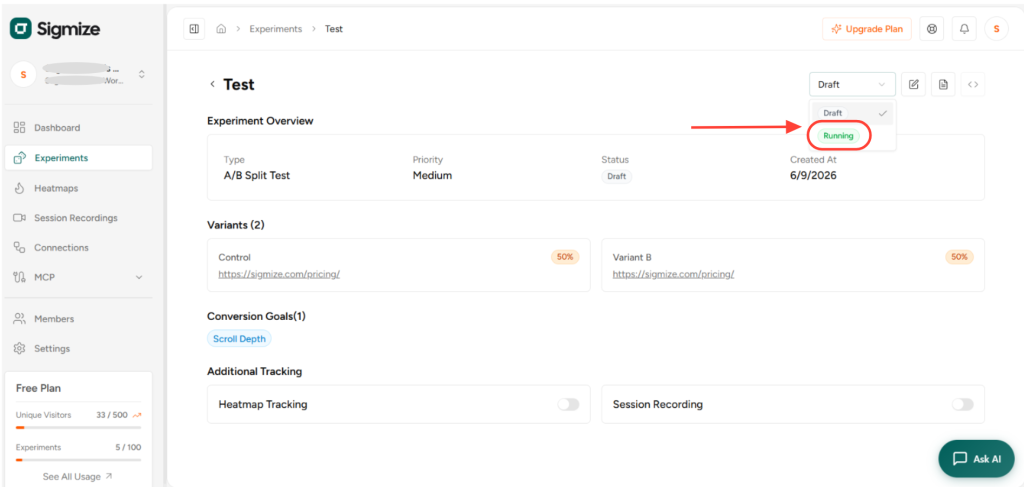
- If all prerequisites are satisfied, a confirmation dialog opens.
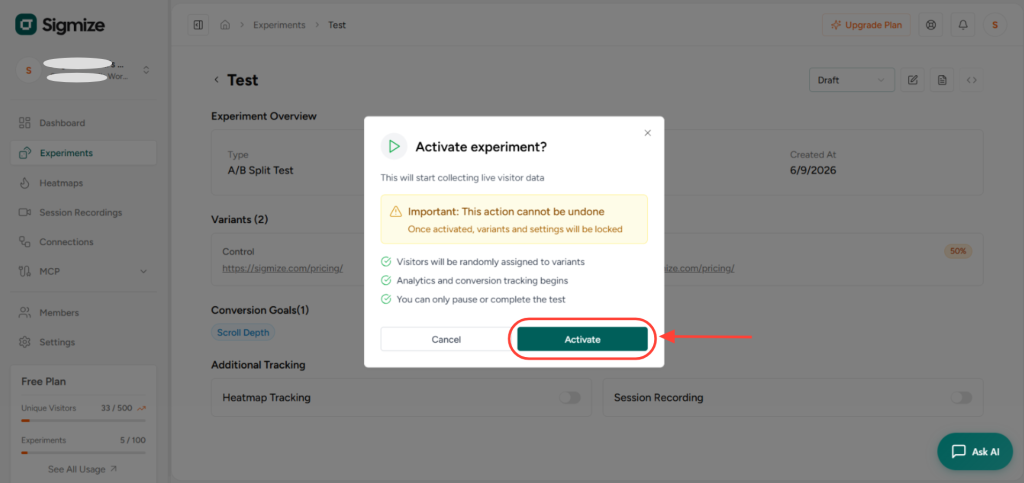
- Review the dialog and click Activate to confirm.
3.4 Confirmation dialog
- Title: Activate experiment?
- Description: This will start collecting live visitor data.
- Warning: Important: This action cannot be undone.
3.5 What happens after activation
- Visitors are randomly assigned to variants immediately.
- Analytics and conversion tracking begins.
- The starts_at timestamp is set (first activation only).
- GenerateVariantScreenshotsJob is dispatched on first activation.
- A webhook is sent to the connected WordPress site.
- The active experiment count on your plan is incremented by 1.
- A log entry “started” is recorded.
4. Pausing an Experiment (Running → Paused)
4.1 Prerequisites
- Experiment must currently be in Running status.
4.2 How to pause
- Select Paused from the status dropdown on the detail page or list view.
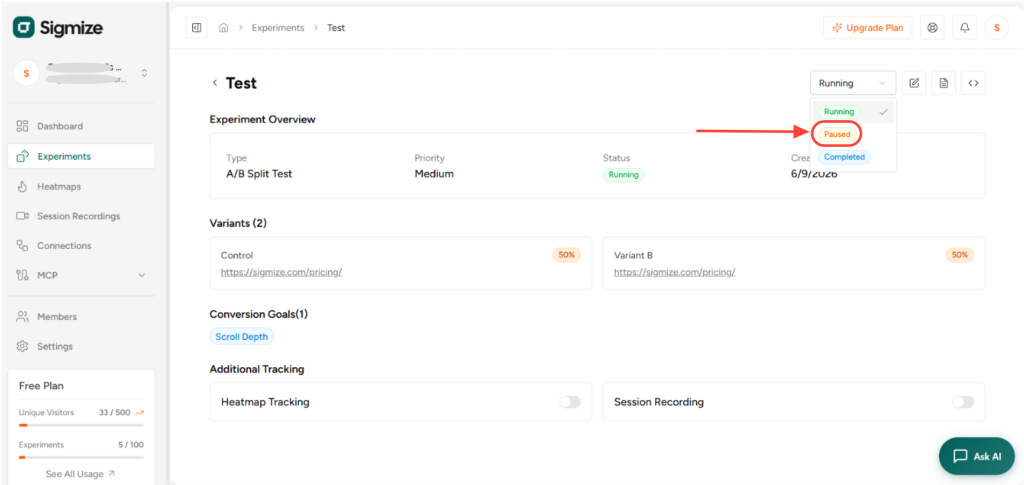
- Confirm in the dialog that appears.
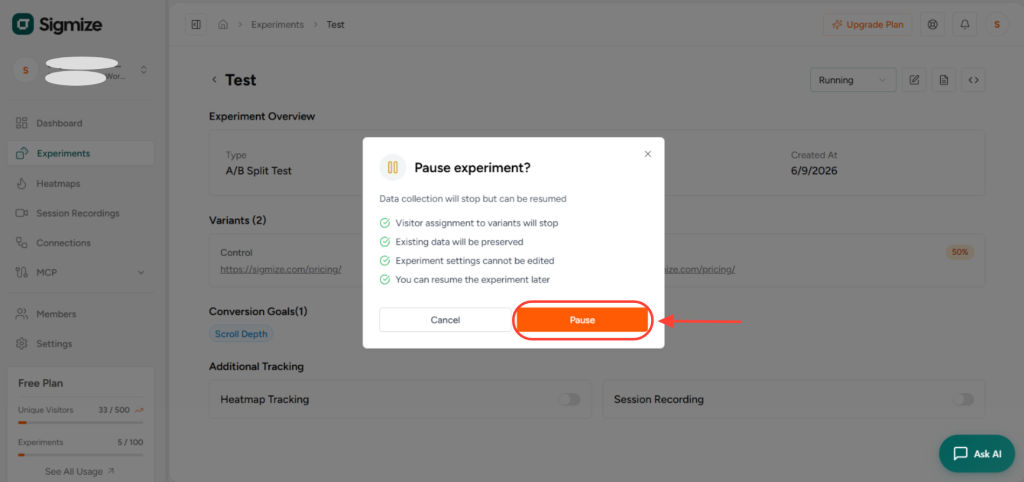
4.3 What happens after pausing
- Visitor assignment stops immediately; no new visitors are assigned.
- Existing assignments and data are fully preserved.
- The experiment becomes read-only; settings cannot be edited.
- ends_at is not set (the experiment can still be resumed).
- A webhook is sent to the connected WordPress site.
- The active experiment count is decremented by 1.
- A log entry “paused” is recorded.
Note: Conversions attributed to assignments made while the experiment was Running continue to be counted even after pausing.
5. Resuming a Paused Experiment (Paused → Running)
5.1 Prerequisites
- Experiment must be in Paused status.
- Active experiment quota must be available on the current plan.
- Email address must be verified.
5.2 How to resume
- Select Running from the status dropdown while the experiment is Paused.
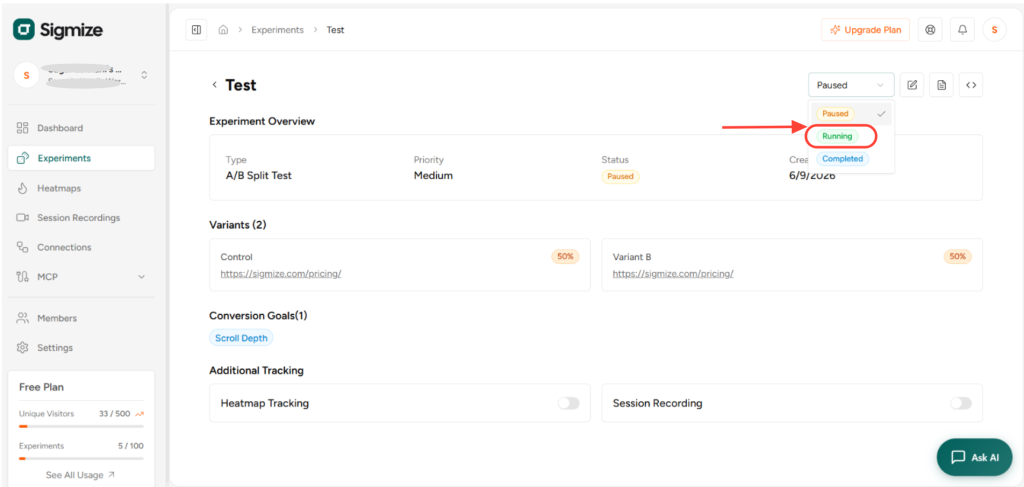
- Confirm in the dialog.
5.3 What happens after resuming
- Visitor assignment resumes using the original starts_at timestamp (not reset).
- Variant screenshots are not regenerated on resume.
- A webhook is sent to the connected WordPress site.
- The active experiment count is incremented by 1.
- A log entry “started” is recorded.
6. Completing an Experiment (Running / Paused → Completed)
6.1 Prerequisites
- Experiment must be in Running or Paused status.
6.2 How to complete
- Select Completed from the status dropdown, or use More Actions → Mark as Complete on the detail page.
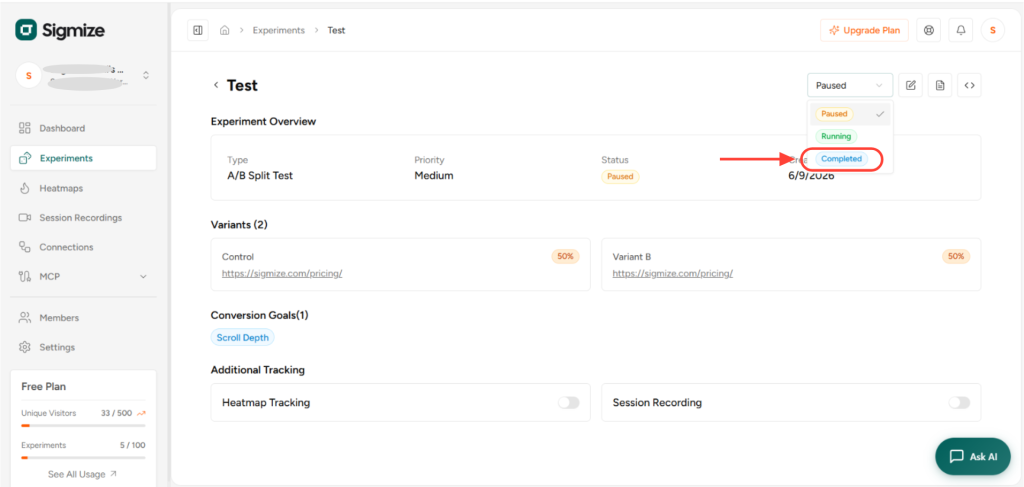
- Confirm in the dialog.
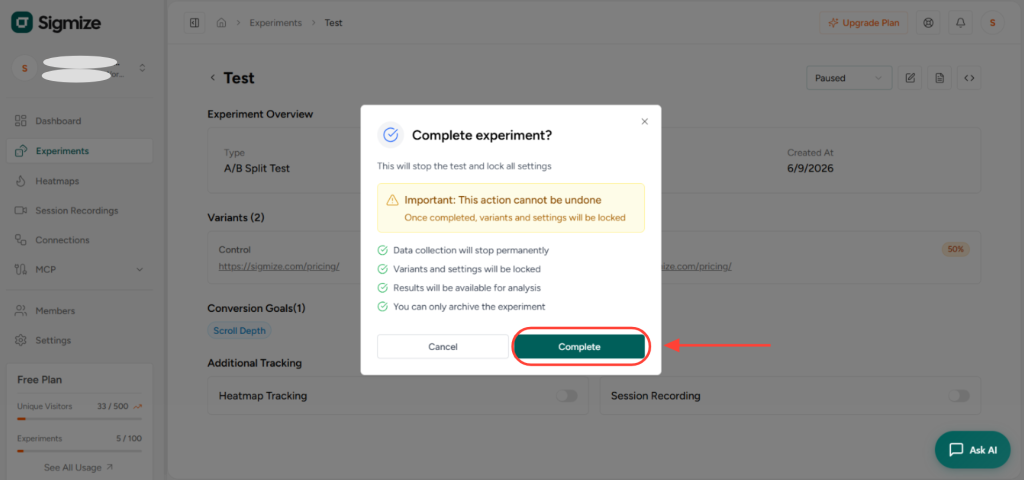
6.3 What happens after completing
- Data collection permanently stops.
- ends_at is set to the current timestamp.
- Variants and settings are locked (read-only).
- Reports and results remain fully accessible.
- A webhook is sent to the connected WordPress site.
- The active experiment count is decremented by 1.
- A log entry “completed” is recorded.
7. Archiving an Experiment (Completed / Paused → Archived)
7.1 Prerequisites
- Experiment must be in Completed or Paused status.
- Running experiments cannot be archived directly; pause or complete first.
7.2 How to archive
- Select Archived from the status dropdown.
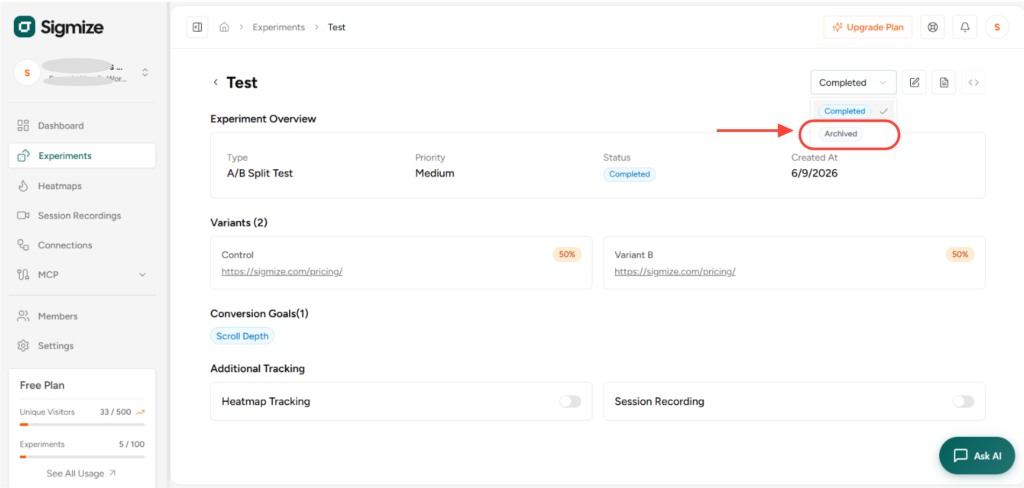
- Confirm in the dialog.
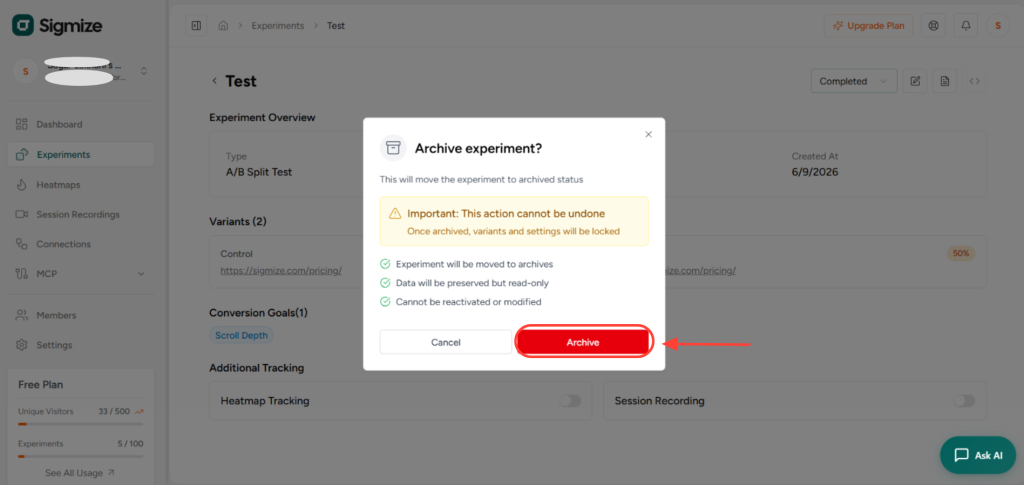
7.3 What happens after archiving
- The experiment is moved to the archive; this is a terminal state.
- All historical data is preserved in read-only form.
- The experiment cannot be reactivated or modified.
- No webhook is fired for the archiving transition.
- A log entry “archived” is recorded.
8. Data Behaviour Through Status Changes
The following table shows what data operations are available in each status:
| What | Running | Paused | Completed | Archived |
|---|---|---|---|---|
| New visitor assignments | Yes | No | No | No |
| Existing assignments kept | Yes | Yes | Yes | Yes |
| Conversions tracked | Yes | No | No | No |
| Settings editable | No | No | No | No |
| Results viewable | Yes | Yes | Yes | Yes |
| Experiment deletable | No | No | No | No |
Important: Assignments made while an experiment is Running are never deleted. If a visitor was assigned to a variant and later converts after the experiment is paused or completed, that conversion is still attributed to the original assignment.
9. Plan Limits
Each workspace has an active experiment quota determined by its plan.
- Activating an experiment (transitioning to Running) consumes 1 quota slot.
- Pausing or completing an experiment frees 1 quota slot.
- If the quota is reached, the Running option is disabled in the status dropdown and users are prompted to upgrade their plan.
10. Permissions Required
Access to status changes depends on the user’s role:
| Role | Can Change Status? |
|---|---|
| Organization Admin / Owner | Yes – any experiment |
| Workspace Manager | Yes – any experiment in workspace |
| Workspace Editor | Yes – only their own experiments |
| Workspace Viewer | No |
Need Help?
If you need any assistance, please email [email protected], and our support team will be happy to help you.
We don't respond to the article feedback, we use it to improve our support content.