
- Troubleshooting Missing Styles in Session Replay & Heatmaps
- Sigmize Workspaces User Guide
- Cloning an Experiment in Sigmize
- Sigmize Experiment Lifecycle Guide
- User Profile Management Guide
- How to Invite Members to a Workspace in Sigmize
- How to Switch Organizations in Sigmize
- Let’s set up Organization & Workspace with Sigmize
- Getting Started with Sigmize
- How to Install and Connect the Sigmize WordPress Plugin
How to Switch Organizations in Sigmize
In Sigmize, an Organization is the top-level billing and access container. A user can belong to multiple organizations, for example, as an owner of their own org and as an invited member of a client’s org.
Each organization contains one or more Workspaces, which are where experiments, variants, and goals actually live. Switching organizations also switches your active workspace to the first one you have access to in that org. This guide covers the switching method between organizations.
Prerequisites
Before switching organizations, please ensure the following:
1. You Must Be Logged In to Sigmize
Sign in at sigmize.com with your registered credentials before proceeding.
2. You Must Belong to More Than One Organization
The Switch Organization option only appears if your account has access to multiple organizations. If you don’t see it, check whether you have accepted all pending organization invitations.
Switch Organization via the Sidebar Switcher
This is the fastest way to switch when you are already inside the Sigmize dashboard.
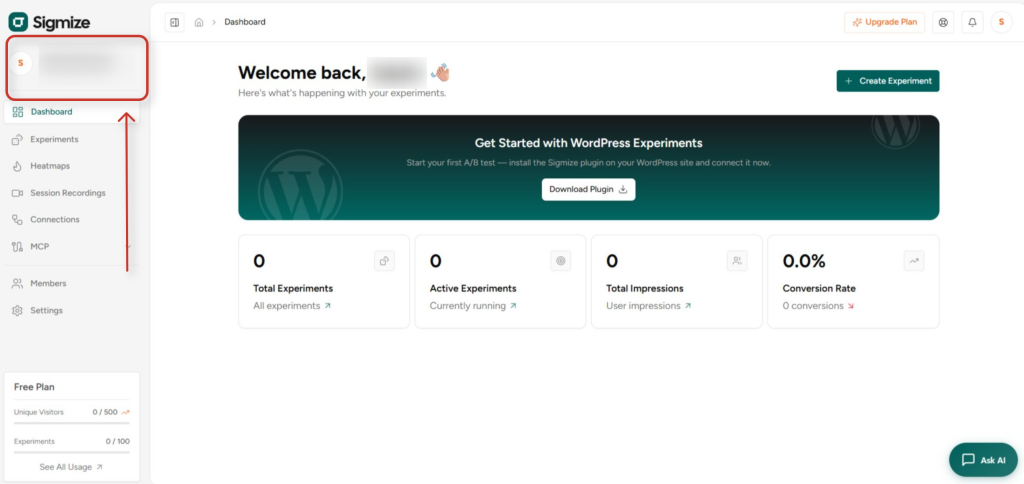
1. Locate the Organization / Workspace Switcher in the Sidebar
- At the top of the left sidebar, you will see a button showing your current organization name and workspace name.
- Click that button to open the switcher dialog.
2. Review the Switcher Dialog
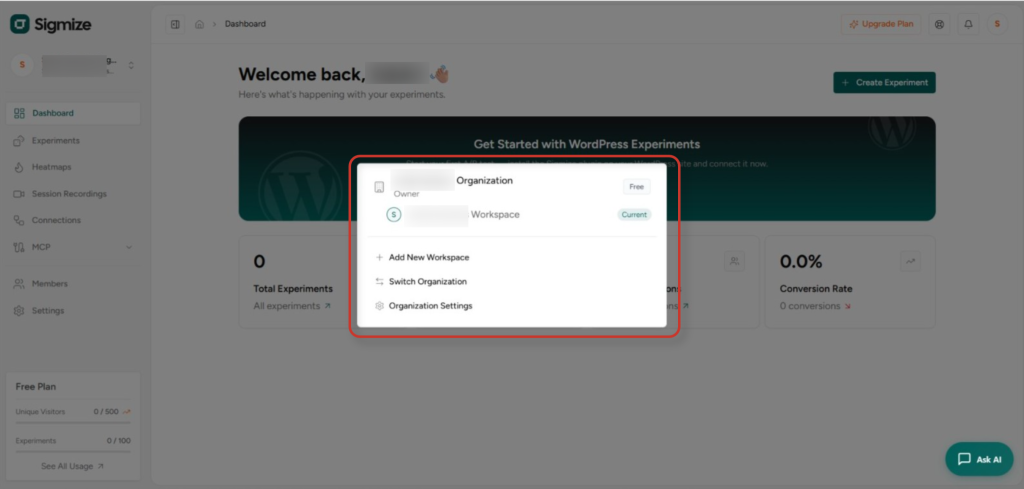
- The dialog opens showing your current organization with its plan badge (Free / Pro / Business / Lifetime).
- Below the organization header, all workspaces within that organization are listed. Your active workspace is marked Current.
- Three action options appear at the bottom: Add New Workspace, Switch Organization, and Organization Settings.
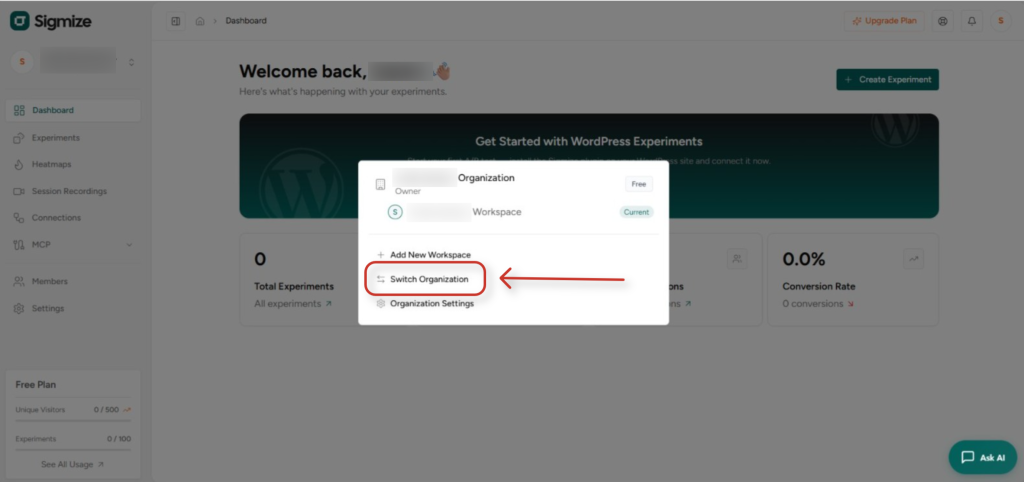
3. Click “Switch Organization”
- Click the Switch Organization option in the dialog. This navigates you to the Organizations selection page.
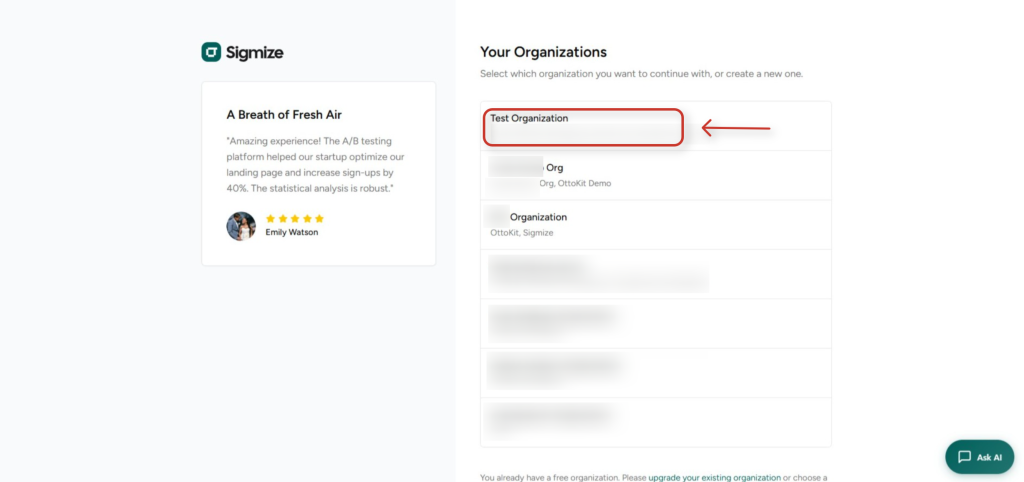
4. Select the Target Organization
- On the Organizations page, all organizations you belong to are listed as cards.
- Click the organization card you want to switch into.
5. Sigmize Switches Your Active Context
- Sigmize updates your active organization on the server.
- It automatically selects the first workspace in that organization that you have access to.
- Your session data is refreshed, and you are redirected to the Dashboard of the new organization.
What Happens After Switching
The table below summarizes what changes depending on the action taken:
Switch Organization
- Organization updated: Yes – to the selected org.
- Workspace updated: Yes – to the first accessible workspace in that org.
Your active context (organization + workspace) is saved to your user profile on the server, so it persists across sessions. It is also cached in your browser’s local storage for instant load on the next visit.
Permissions and Access Rules
- Org owners and admins can switch to any workspace within their organization.
- Regular members can only switch to workspaces they have been explicitly added to.
- The Organization Settings and Add New Workspace options in the switcher dialog are only visible to org admins and owners.
- Users cannot have two organizations active at the same time; switching is always a one-at-a-time operation.
Troubleshooting
I don’t see the Switch Organization button.
- You may only belong to one organization. The button appears only when you have access to more than one org.
- Check whether you have accepted all pending organization invitations.
After switching, I see a different workspace than expected.
- Regular members are placed into the workspace they are assigned to. If the workspace looks unfamiliar, check with your org admin which workspace you are a member of.
The switcher shows an org but clicking it does nothing.
- Try refreshing the page. If the issue persists, clear your browser’s local storage for the Sigmize domain and log back in.
I switched organizations but my experiments are missing.
- Experiments are workspace-specific. Make sure you are in the correct workspace within the organization. Use the sidebar switcher to verify your active workspace.
Need Help?
If you need any assistance, please email [email protected], and our support team will be happy to help you.
We don't respond to the article feedback, we use it to improve our support content.