
- Troubleshooting Missing Styles in Session Replay & Heatmaps
- Sigmize Workspaces User Guide
- Cloning an Experiment in Sigmize
- Sigmize Experiment Lifecycle Guide
- User Profile Management Guide
- How to Invite Members to a Workspace in Sigmize
- How to Switch Organizations in Sigmize
- Let’s set up Organization & Workspace with Sigmize
- Getting Started with Sigmize
- How to Install and Connect the Sigmize WordPress Plugin
Sigmize Workspaces User Guide
Sigmize organizes all experiments, members, and settings within Workspaces. A Workspace is the core multi-tenant unit; every experiment, variant, goal, connection, and team member lives inside one. Workspaces exist within an Organization (the billing/subscription entity), and a single organization can have multiple workspaces, for example, one per product, team, environment, or client.
This guide covers how to create a workspace, switch between workspaces, edit workspace details, manage members, configure workspace settings, and delete a workspace.
Prerequisites
Before creating or managing workspaces in Sigmize, please ensure the following:
1. You have a Sigmize account
You must be registered and logged in to Sigmize. Sign up at sigmize.com if you do not already have an account.
2. You belong to an Organization
Workspaces are created inside Organizations. When you first sign up, Sigmize creates a default Organization and Workspace for you automatically. Additional workspaces are added within your existing Organization.
3. You have the Owner or Admin role
Only users with the Owner or Admin role can create, edit, or delete workspaces. Members with the standard Member role can view the workspaces they are assigned to but cannot manage workspace-level settings.
How to Create a Workspace
Follow these steps to add a new workspace to your Organization.
1. Open the Workspace Switcher
- In the left sidebar, click the Organization / Workspace name area at the top.
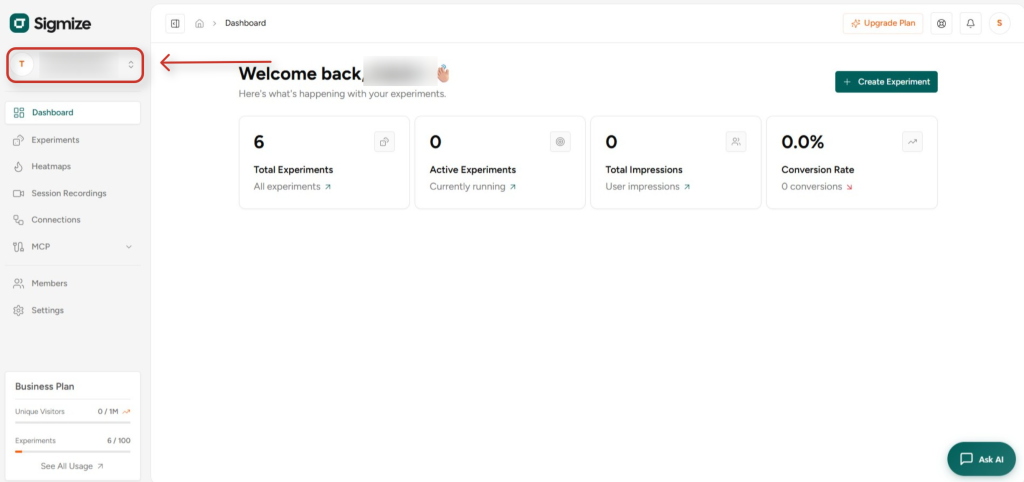
- This opens a dropdown showing your current Organization, all existing workspaces, and options to add or switch.
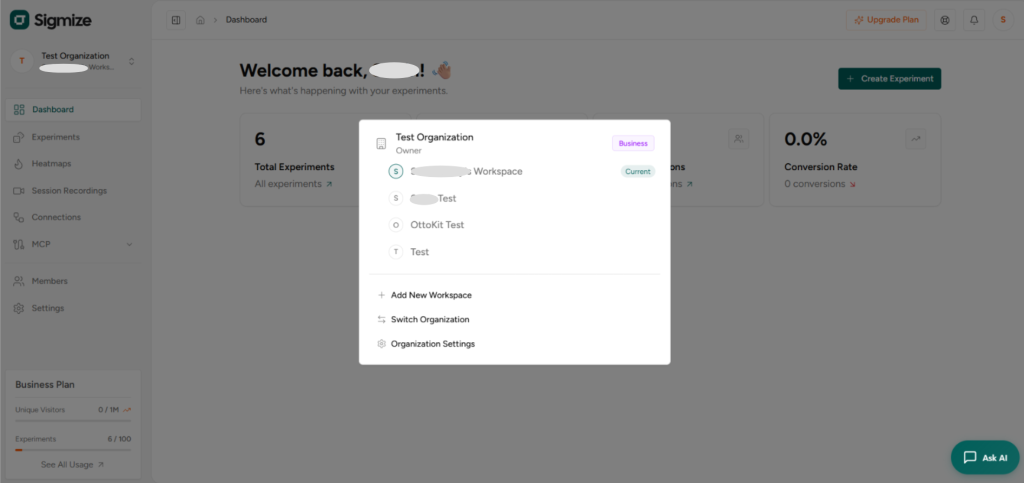
2. Click “Add New Workspace”
- In the dropdown, click + Add New Workspace. The Create Workspace dialog will appear.
3. Enter a Workspace Name
- Type a name for your new workspace in the Workspace Name field. This is required. Optionally add a description to help team members understand the workspace’s purpose.
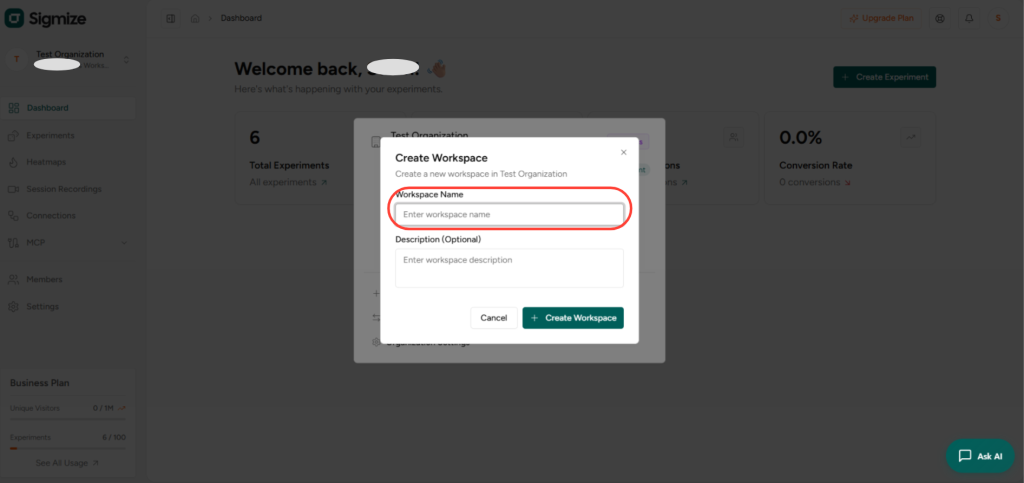
4. Click “Create Workspace”
- Click the Create Workspace button to confirm. Sigmize will create the workspace and automatically switch you into it.
Switching Workspaces
You can switch between workspaces at any time from the sidebar.
1. Open the Workspace Switcher
- Click the Organization / Workspace area at the top of the left sidebar.
2. Select a Workspace
- In the dropdown, your workspaces are listed under the Organization name. The active workspace is marked with a Current badge. Click any other workspace to switch to it immediately. All data, experiments, settings, and members are strictly scoped to the selected workspace.
3. Switch Organization (optional)
- If you belong to multiple Organizations, click Switch Organization to move to a different org and access its workspaces.
Editing a Workspace
Workspace name and description can be updated at any time from the Settings page.
1. Open Settings
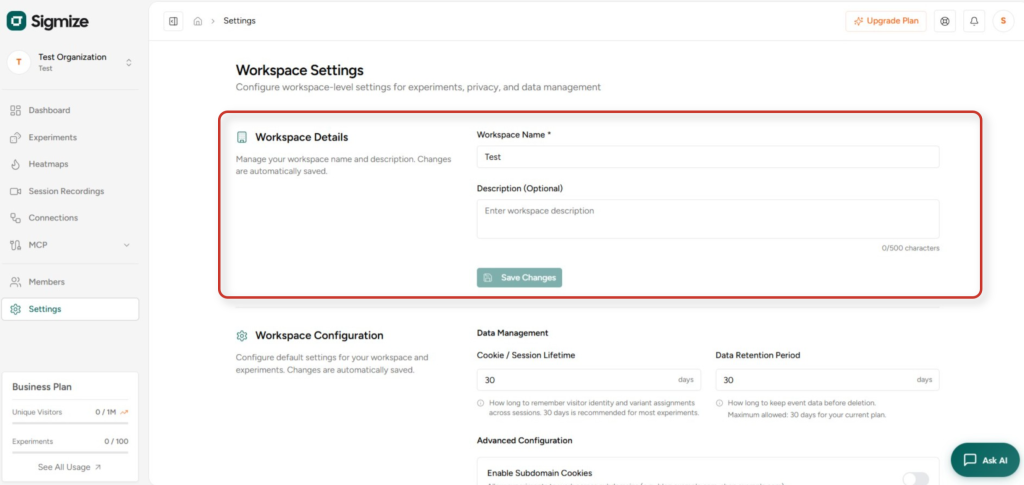
- In the left sidebar, click Settings. The Workspace Settings page opens.
2. Update Workspace Details
- Under Workspace Details, edit the Workspace Name and optionally the Description. Changes are saved automatically; no Save button is required for the name field, though a Save Changes button is present for confirmation.
3. Configure Workspace Settings (optional)
- Scroll down to Workspace Configuration to set the Cookie / Session Lifetime (default: 30 days) and Data Retention Period (default: 7 days). You can also enable Subdomain Cookies to allow experiments to run across subdomains (e.g., blog.example.com, shop.example.com).
4. Set Experiment Rules (optional)
- Under Experiment Rules, configure Minimum Duration and Minimum Impressions before experiment results can be declared conclusive. Recommended defaults are 3 days and 5,000 impressions.
Managing Members
Invite team members to a workspace and assign them appropriate roles.
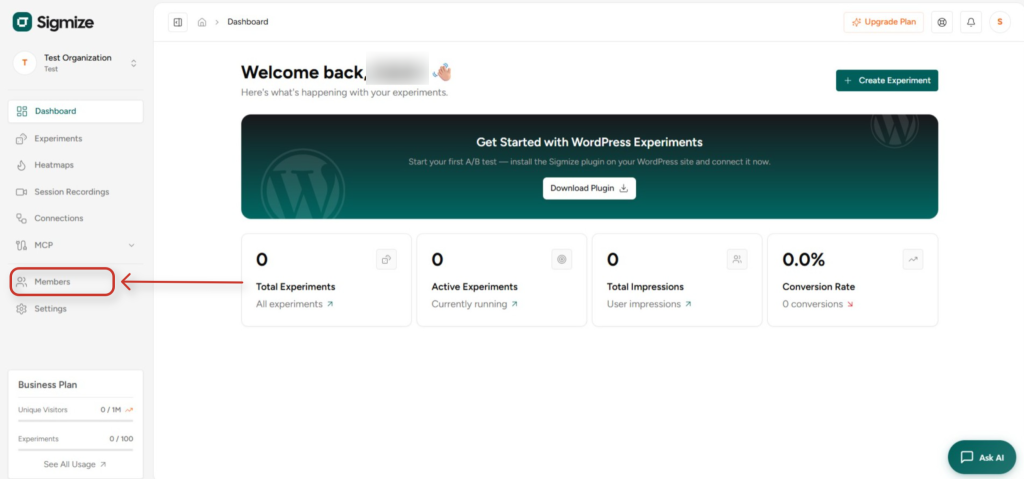
1. Open the Members page
- Click Members in the left sidebar. The Members page lists all users currently assigned to your workspace with their name, email, edit permission status, and role.
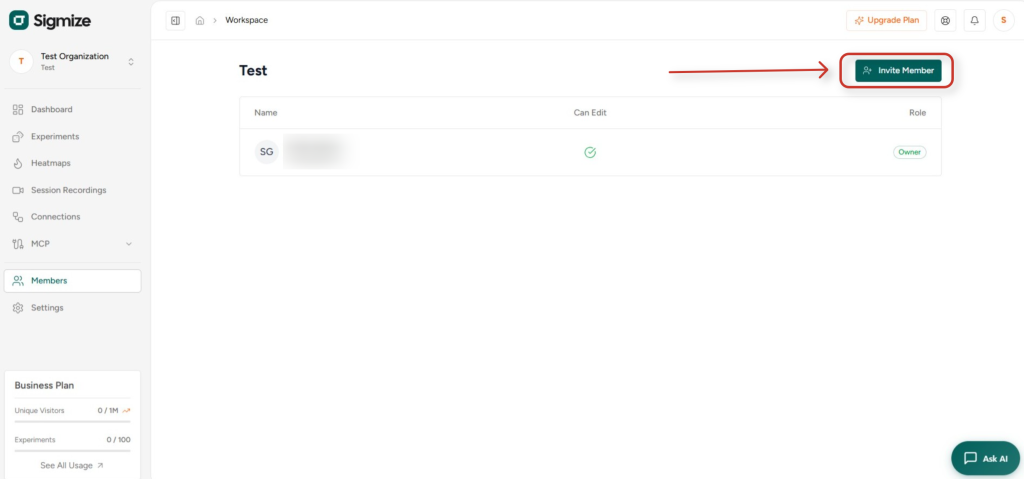
2. Click “Invite Member”
- Click the Invite Member button in the top-right corner. The New Member Invitation dialog opens.
3. Enter the email address
- Type the email address of the person you want to invite in the Email field.
4. Select a Role
- Member – Cannot view or edit Organization settings. Only has access to workspaces they are assigned to.
- Admin – Can view and edit all Organization settings, and has full permissions to all workspaces.
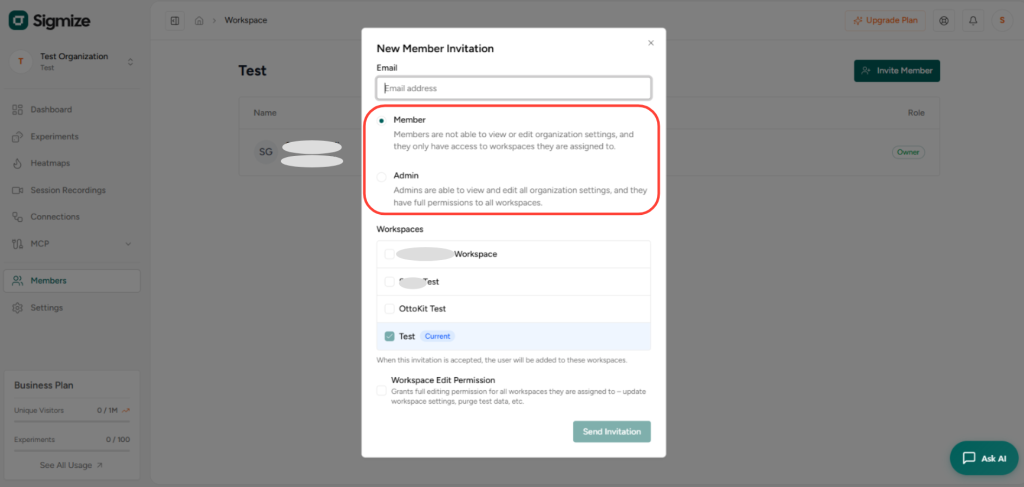
5. Assign Workspaces
- The current workspace is pre-selected. If the invitee should access additional workspaces, check those boxes. You can also grant Workspace Edit Permission, which allows the user to update workspace settings and purge test data.
6. Send the Invitation
- Click Send Invitation. The invitee will receive an email with a link to accept. Once accepted, they are added to the workspace.
Workspace Settings
The Settings page (sidebar > Settings) provides full control over workspace-level configuration. The key settings are:
Workspace Details
- Edit the workspace name and description.
Workspace Configuration
- Cookie / Session Lifetime – How long Sigmize remembers a visitor’s identity and variant assignments. Default: 30 days.
- Data Retention Period – How long event data is stored before deletion. Default: 7 days (Free plan maximum).
- Enable Subdomain Cookies – Allow experiments to work across subdomains.
Experiment Rules
- Minimum Duration – Minimum runtime before results can be declared conclusive. Default: 24 hours.
- Minimum Impressions – Minimum sample size before declaring results reliable. Default: 1,000 impressions.
Privacy & Legal
- Enable Cookie Consent – Show a consent banner before tracking users. Compatible with Sigmize’s built-in CMP or a third-party consent platform.
Deleting a Workspace
Workspace deletion is permanent and cannot be undone. All experiments, data, and settings in the workspace will be lost.
1. Open Settings
- Click Settings in the left sidebar.
2. Scroll to Danger Zone
- Scroll to the bottom of the Settings page to the Danger Zone section.
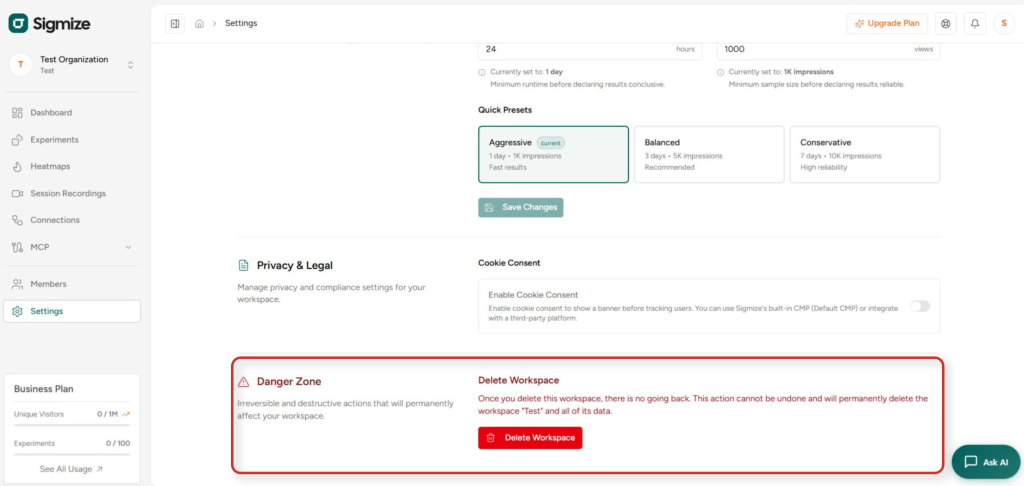
3. Click “Delete Workspace”
- Click the Delete Workspace button. Sigmize will ask you to confirm before proceeding. Once confirmed, the workspace and all its data are permanently deleted.
Note: If you are the Organization Owner and this is your only workspace, you may need to create a replacement workspace before deletion is permitted.
Need Help?
If you need any assistance, please email [email protected], and our support team will be happy to help you.
We don't respond to the article feedback, we use it to improve our support content.