
- Troubleshooting Missing Styles in Session Replay & Heatmaps
- Sigmize Workspaces User Guide
- Cloning an Experiment in Sigmize
- Sigmize Experiment Lifecycle Guide
- User Profile Management Guide
- How to Invite Members to a Workspace in Sigmize
- How to Switch Organizations in Sigmize
- Let’s set up Organization & Workspace with Sigmize
- Getting Started with Sigmize
- How to Install and Connect the Sigmize WordPress Plugin
User Profile Management Guide
Sigmize provides a centralised profile management interface where users can update personal details, manage account security, configure passkeys for passwordless login, and create API keys for programmatic access to the Sigmize Public API.
This guide covers every user-facing flow: editing personal information, changing your password, managing passkeys, navigating to API Keys, creating and managing keys, and switching between workspaces and organisations.
Prerequisites
Before managing your profile, please ensure the following:
1. You have a Sigmize account
Sign up or log in at sigmize.com. Profile management is only available to authenticated users.
2. Your browser supports WebAuthn (for Passkeys)
Passkey registration requires a browser that supports the WebAuthn standard; this includes Chrome 67+, Safari 14+, Firefox 60+, and Edge 18+. If your browser does not support WebAuthn, the Passkeys section will be hidden.
3. You have a Manager role (for API key deletion)
Creating, editing, revoking, and regenerating API keys is available to all users. Permanently deleting an API key requires the Manager role in your organisation.
1. Editing Personal Information
Your name and profile details live on the My Profile page. Changes are saved automatically – there is no Save button for this section.
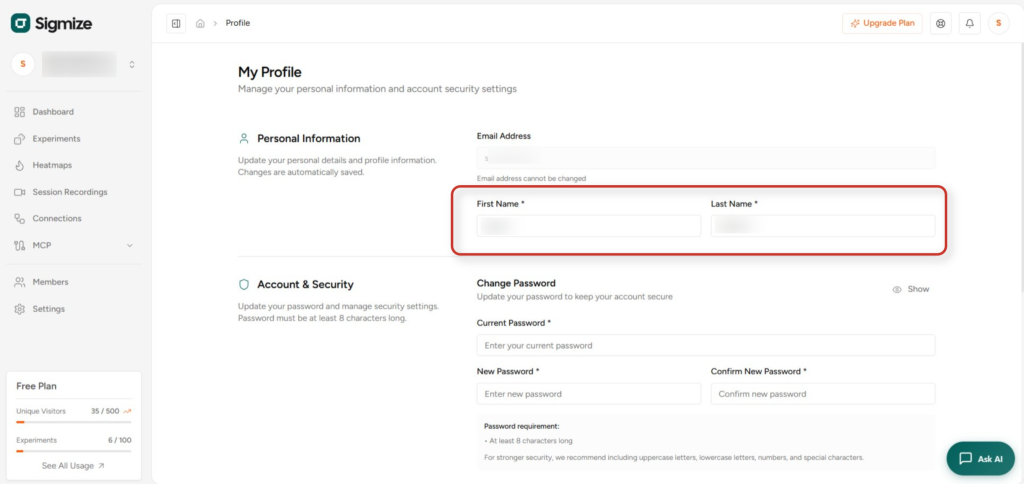
1.1 Navigate to My Profile
- Click the user avatar (top-right corner) and select My Profile, or go directly to /profile.
- The page is split into three sections: Personal Information, Account & Security, and Passkeys.
1.2 Update your name
- Enter or update the First Name and Last Name fields.
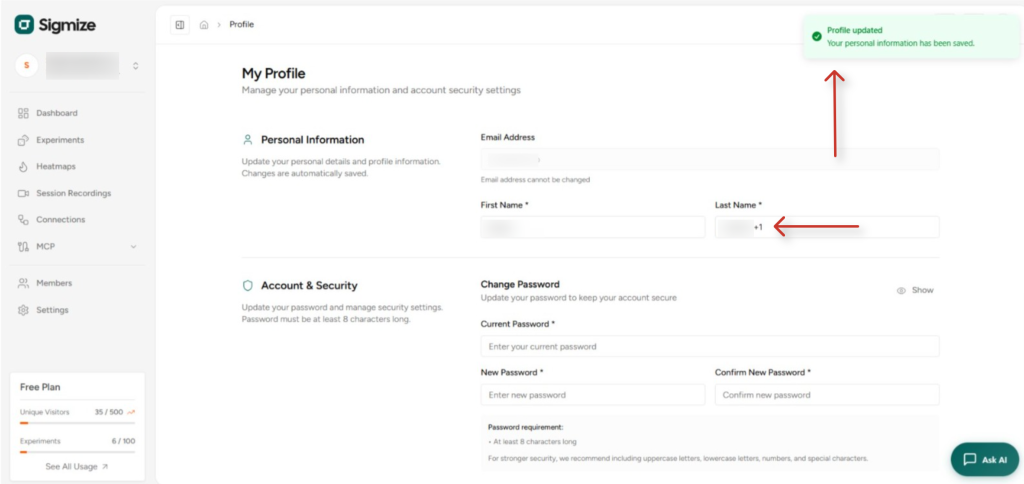
- Changes are saved automatically after approximately 2 seconds of inactivity. You will see a “Changes saved automatically” confirmation toast.
- The Email Address field is read-only and cannot be changed after account creation.
2. Changing Your Password
The Change Password form is located in the Account & Security section of the My Profile page.
2.1 Open Account & Security
- Scroll down on the My Profile page to reach the Account & Security section.
2.2 Enter password details
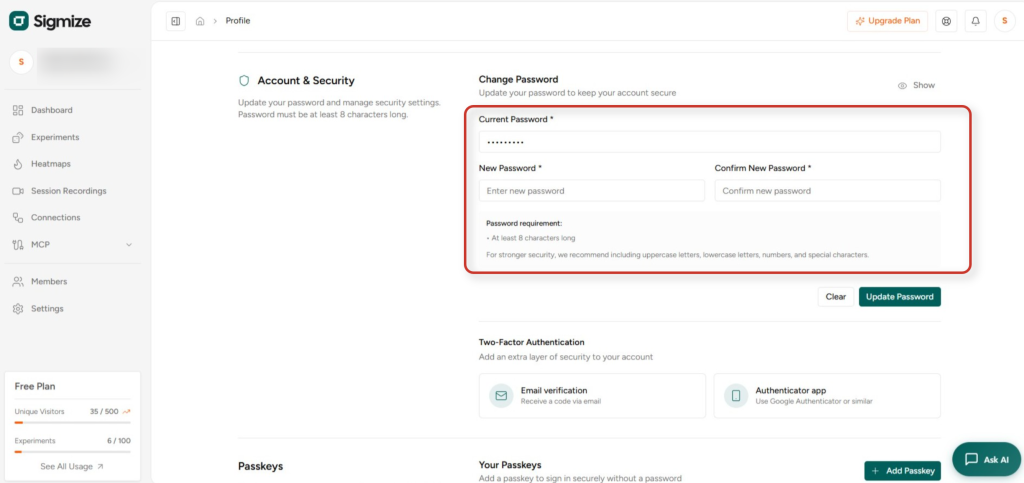
- Current Password – enter your existing password. This field is required.
- New Password – must be a minimum of 8 characters.
- Confirm New Password – must match the New Password field exactly.
- A strength indicator will appear showing Weak, Medium, or Strong based on character complexity (lowercase, uppercase, numbers, special characters).
2.3 Save or Update
- Click the Save button to apply the new password.
- All active sessions on other devices are immediately logged out after a successful password change (except WordPress connector sessions which maintain their own auth).
3. Managing Passkeys
Passkeys are a modern, passwordless authentication method that uses your device’s biometric hardware (Face ID, Touch ID, Windows Hello, or a FIDO2 security key) to verify your identity.
3.1 Add a Passkey
- Scroll to the Passkeys section on the My Profile page.
- Click + Add Passkey.
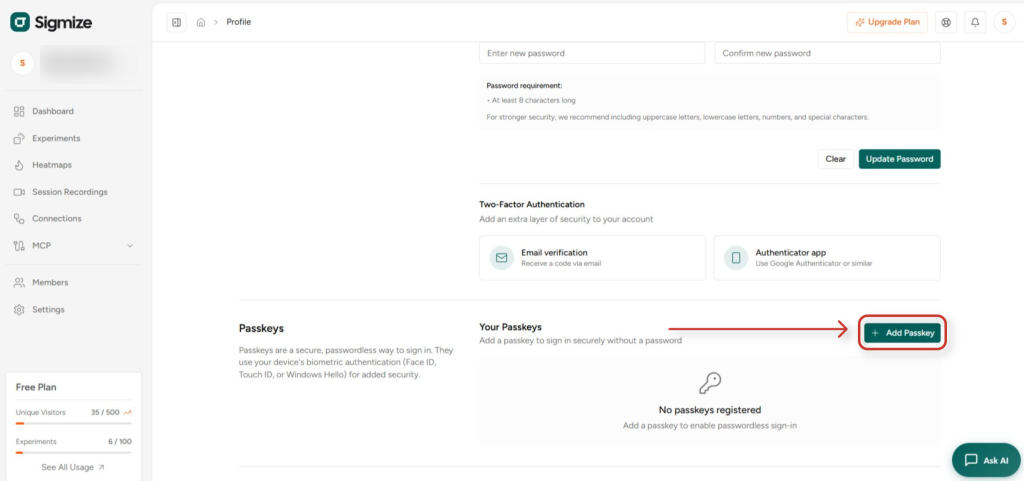
- Enter a friendly name for the passkey (e.g., “MacBook Touch ID” or “YubiKey 5”).
- Follow the browser or device prompt to complete biometric or hardware authentication.
- The passkey is saved and listed with its creation date and last-used date.
3.2 Rename a Passkey
- Click the Edit (pencil) icon next to the passkey you want to rename.
- Enter the new name and click Save.
3.3 Delete a Passkey
- Click the Delete (trash) icon next to the passkey.
- Confirm the deletion in the confirmation dialog.
4. Google Sign-In and Connected Accounts
Google login is handled at sign-in time, not from the profile page. There is no manual link or unlink flow in the UI.
4.1 How Google account linking works
- When you sign in with Google, Sigmize matches the Google account email against existing accounts.
- If a match is found, the accounts are linked automatically, and you are logged in.
- Google-verified emails are treated as pre-verified: no email confirmation step is needed.
4.2 Security note for unverified accounts
- If the matched Sigmize account has an unverified email, your password is invalidated for security. Use the Forgot Password flow to set a new password before using password-based login again.
5. API Keys
API keys grant programmatic access to the Sigmize Public API. Keys are workspace-scoped: each key belongs to one workspace and can only access data within it.
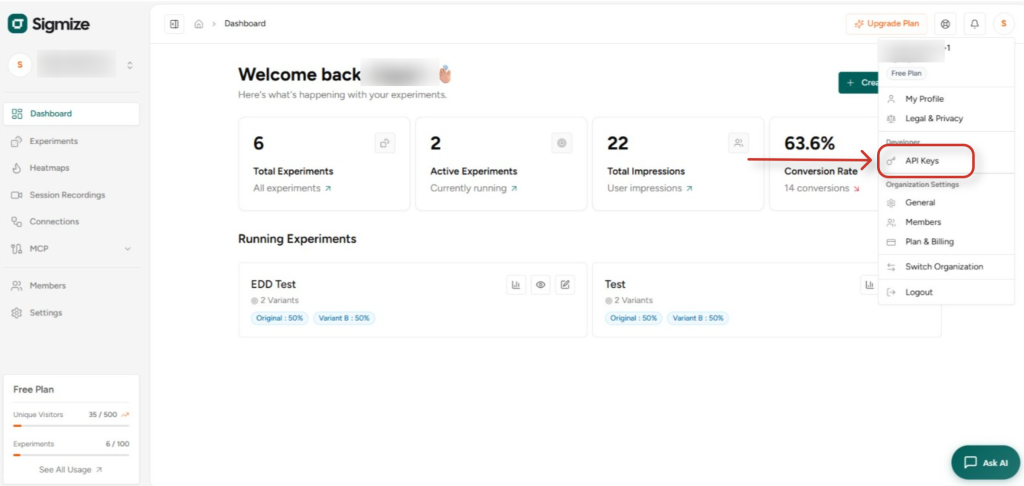
5.1 Navigate to API Keys
- Click the user avatar in the top-right corner.
- Under the Developer heading in the dropdown menu, click API Keys.
5.2 Create an API Key
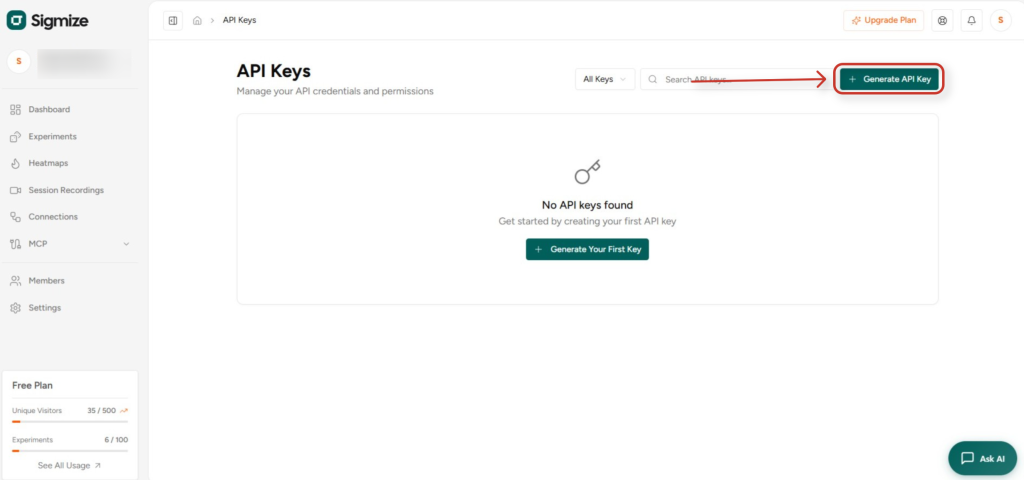
- On the API Keys page, click + Generate API Key (or Generate Your First Key if no keys exist yet).
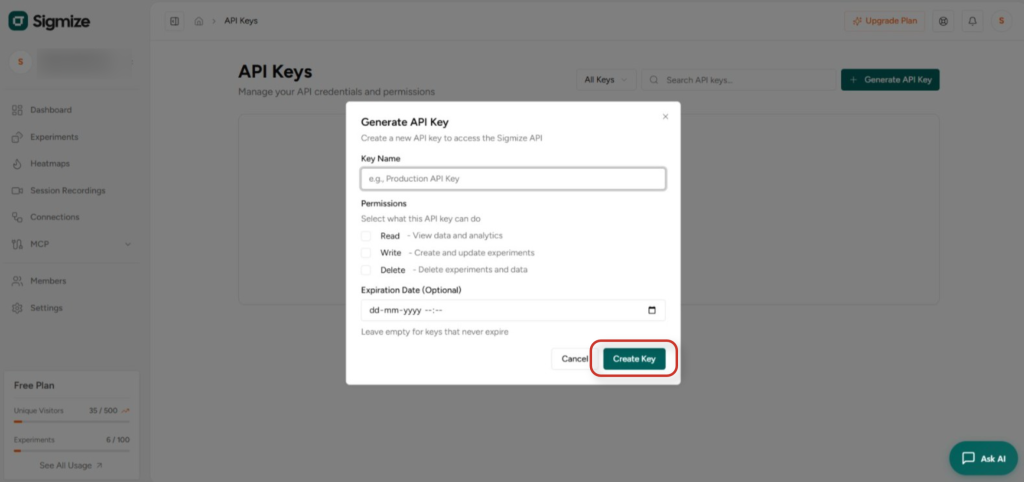
The Generate API Key modal will open:
- Key Name – enter a descriptive name that is unique within your workspace (e.g., “Production Read-Only”).
- Permissions – select one or more abilities: Read (view data and analytics), Write (create and update experiments), Delete (delete experiments and data).
- Expiration Date (Optional) – set an expiry date and time. Leave blank for a key that never expires.
- Click Create Key. The full key value is displayed once only: copy it immediately and store it securely. It cannot be retrieved again.
5.3 Manage Existing Keys
- Edit – update the key name, permissions, or expiry date.
- Revoke – deactivate a key without deleting it; the key can be reactivated later.
- Regenerate – generate a new key hash. The old key is immediately invalidated; the new key value is shown once.
- Delete – permanently remove the key. Requires the Manager role.
- View Logs – inspect per-request usage history including endpoint, HTTP method, response time, IP address, and timestamp.
5.4 Key attributes shown in the API Keys list
- Name, Key prefix (first 8 characters), Abilities, Status (Active / Revoked)
- Usage count, Last used date, Creation date
6. Workspace and Organisation Switching
If you have access to multiple workspaces or organisations, you can switch context at any time using the workspace switcher in the sidebar.
6.1 Switch workspace
- Click the workspace name / avatar at the top of the left sidebar.
- A dropdown lists all workspaces you have access to within the current organisation.
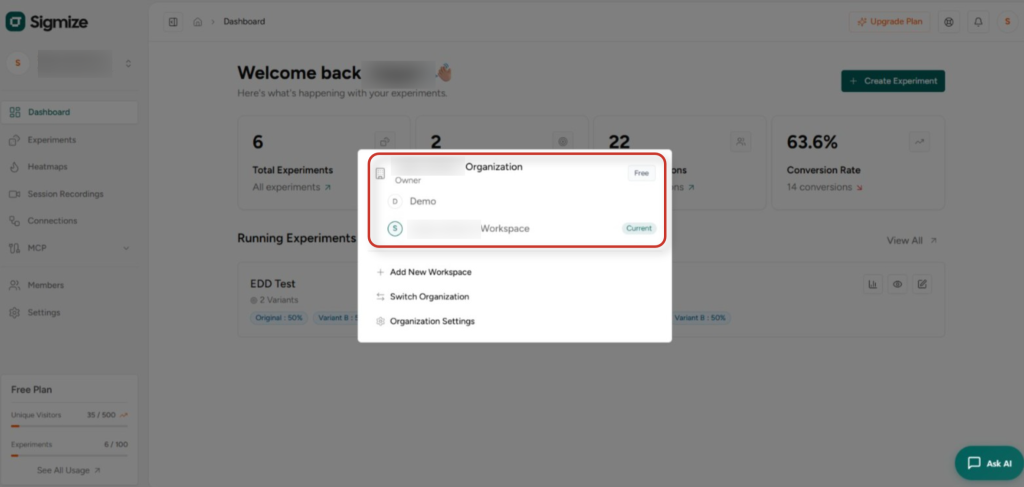
- Click a workspace to switch: all experiment data, goals, and reports will reload for the selected workspace.
- Your selected workspace context is remembered across sessions.
6.2 Switch organisation
- In the same dropdown, click Switch Organization.
- Select an organisation: the workspace list updates to show that organisation’s workspaces.
- Then select a workspace within the new organisation to complete the switch.
Need Help?
If you need any assistance, please email [email protected], and our support team will be happy to help you.
We don't respond to the article feedback, we use it to improve our support content.