
- Troubleshooting Missing Styles in Session Replay & Heatmaps
- Sigmize Workspaces User Guide
- Cloning an Experiment in Sigmize
- Sigmize Experiment Lifecycle Guide
- User Profile Management Guide
- How to Invite Members to a Workspace in Sigmize
- How to Switch Organizations in Sigmize
- Let’s set up Organization & Workspace with Sigmize
- Getting Started with Sigmize
- How to Install and Connect the Sigmize WordPress Plugin
How to Invite Members to a Workspace in Sigmize
Sigmize allows you to collaborate with your team by inviting members to your workspace. You can assign roles at both the organization level (Admin or Member) and control workspace-level edit access.
This guide covers the complete flow for sending invitations, understanding roles and permissions, accepting invitations, managing pending invites, and using bulk invite.
Roles & Permissions
Sigmize has two levels of roles:
- Organization roles (in descending privilege): Owner → Admin → Member
- Workspace Edit Permission: can be granted to any Member to allow full editing of workspace settings
Admins and Owners automatically get access to all workspaces. Members must be explicitly assigned to workspaces and can optionally be granted Workspace Edit Permission.
Who Can Invite
Owner / Admin
- Can invite new users as Admin or Member to any workspace.
Workspace Manager (Member role)
- Can invite Members only (not Admins).
- Limited to the current workspace they manage.
- Can assign only Viewer or Editor roles within that workspace.
Editor / Viewer
- Cannot send invitations.
Sending an Invitation
Follow the steps below to invite a new member to your Sigmize workspace.
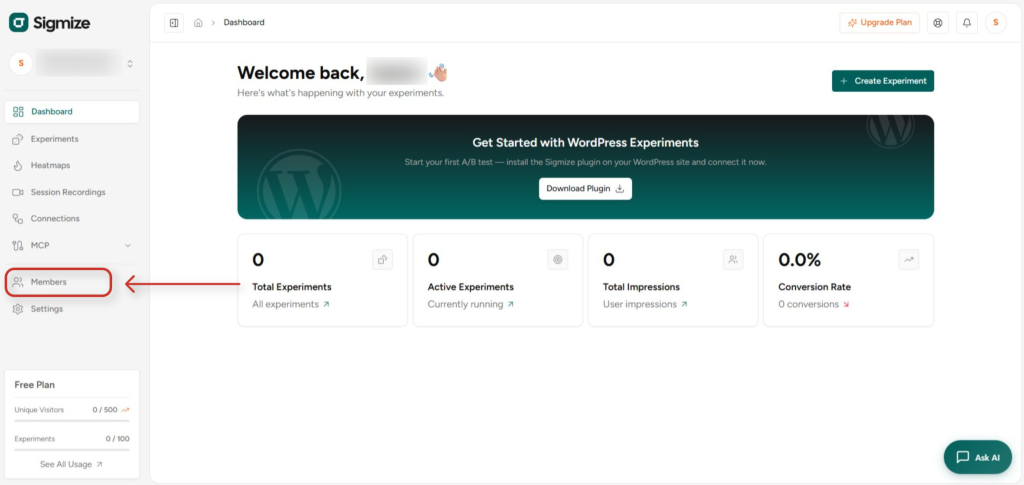
1. Open the Members Page
- In the left sidebar, click Members. This opens the workspace members list.
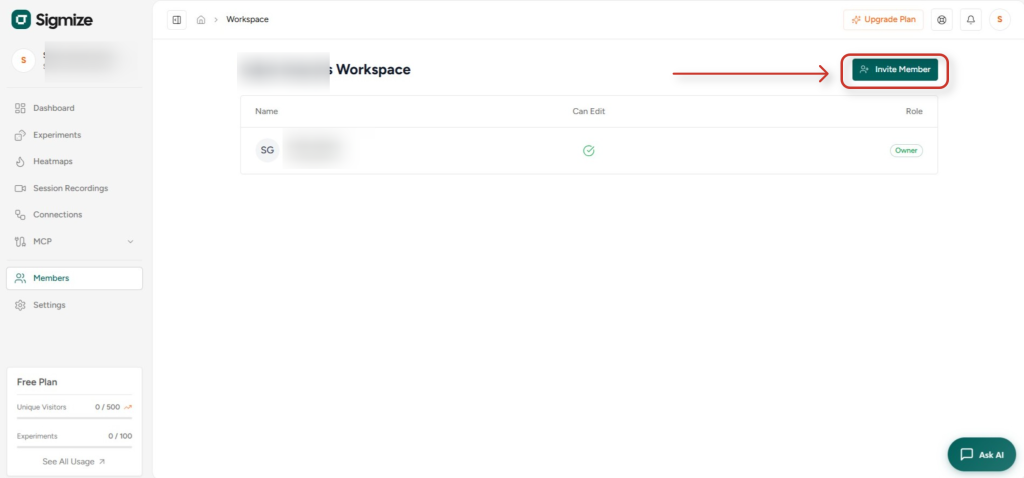
2. Click “Invite Member”
- Click the Invite Member button in the top-right corner of the page.
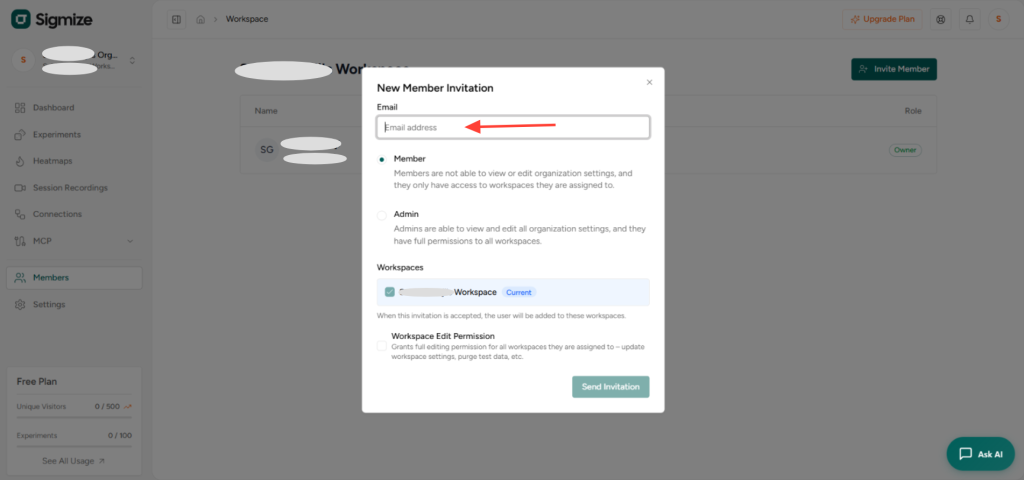
3. Enter the Invitee’s Email
- In the New Member Invitation dialog, type the email address of the person you want to invite.
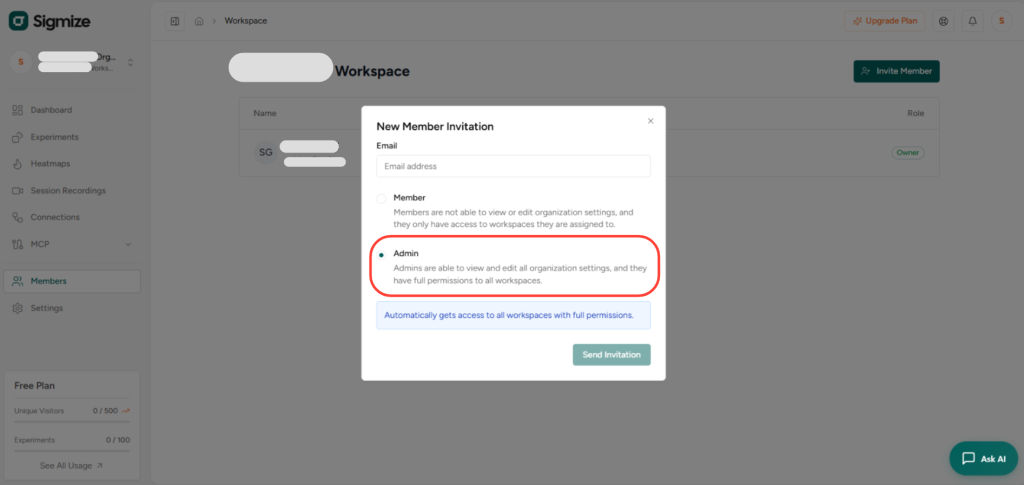
4. Select the Organization Role
- Choose Member if the person should only have access to assigned workspaces and cannot view or edit organization settings.
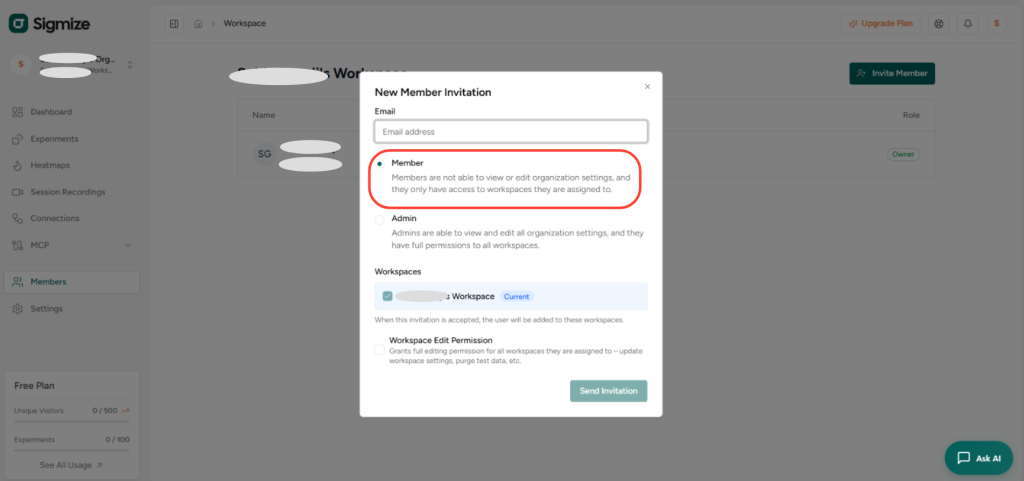
- Choose Admin if the person needs full access to all organization settings and all workspaces.
5. Assign a Workspace
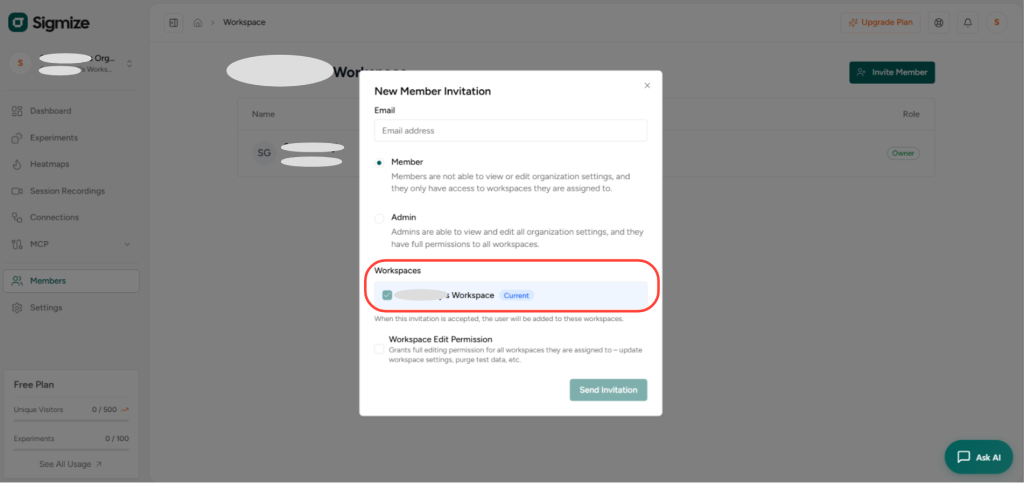
- The current workspace is pre-selected. The invited user will be added to it once they accept.
- Optionally check Workspace Edit Permission to grant the invitee the ability to update workspace settings, purge test data, and more.
6. Send the Invitation
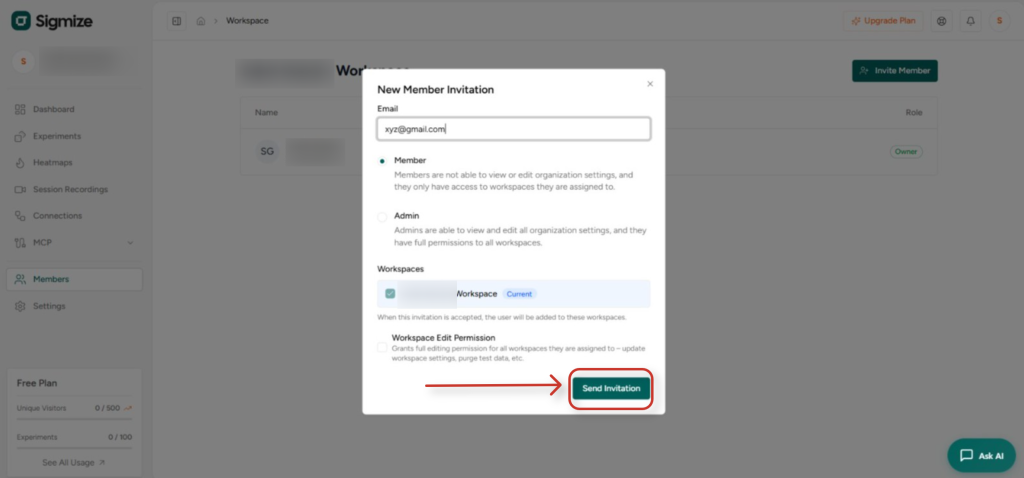
- Click Send Invitation. The system creates a secure token and sends an invitation email with a link that expires in 7 days.
Invitee Flow (Accepting the Invitation)
New User
- Clicks the invitation link from their email.
- Sees the invitation preview.
- Clicks Create Account & Accept.
- Completes sign-up. Invitation is automatically accepted and they land on the dashboard.
Existing User
- Clicks the invitation link from their email.
- Logs in to their existing account.
- Clicks Accept. They are immediately added to the organization and assigned workspace(s).
Wrong Account Logged In
- The user sees a warning that the invitation was sent to a different email address.
- They click Switch Account and log in with the correct email.
Managing Pending Invitations
To manage invitations that have not yet been accepted, go to Members in the sidebar. Pending invitations appear in a separate list below the active members.
Resend
- Generates a new secure token and resets the 7-day expiry period.
- Sends a fresh invitation email to the invitee.
Cancel
- Permanently invalidates the invitation link.
- The invitee will not be able to accept the original link even if they still have the email.
Bulk Invite
To invite multiple people at once from Workspace Settings:
1. Go to Settings
- Click Settings in the sidebar to open Workspace Settings.
2. Open the Members tab
- Navigate to the Members section within Workspace Settings.
3. Paste multiple email addresses
- Enter multiple email addresses separated by commas, spaces, or new lines.
4. Choose a role and send
- Select one role that will apply to all invitees, then click Send. Each person receives their own individual invitation email.
Key Rules
- Invitations expire after 7 days. Use Resend to issue a new link.
- You cannot invite someone who is already a member of the organization.
- You cannot invite someone to a role higher than your own.
- Members must have at least one workspace assigned when invited.
- Duplicate pending invitations for the same email address are blocked.
Need Help?
If you need any assistance, please email [email protected], and our support team will be happy to help you.
We don't respond to the article feedback, we use it to improve our support content.