
- Troubleshooting Missing Styles in Session Replay & Heatmaps
- Sigmize Workspaces User Guide
- Cloning an Experiment in Sigmize
- Sigmize Experiment Lifecycle Guide
- User Profile Management Guide
- How to Invite Members to a Workspace in Sigmize
- How to Switch Organizations in Sigmize
- Let’s set up Organization & Workspace with Sigmize
- Getting Started with Sigmize
- How to Install and Connect the Sigmize WordPress Plugin
Let’s Set Up Element Variation Experiments
In this documentation, we will look at how to set up an Element Variation Experiment with Sigmize.
To set up the element variation experiment, follow the steps below:
1. Create a New Experiment
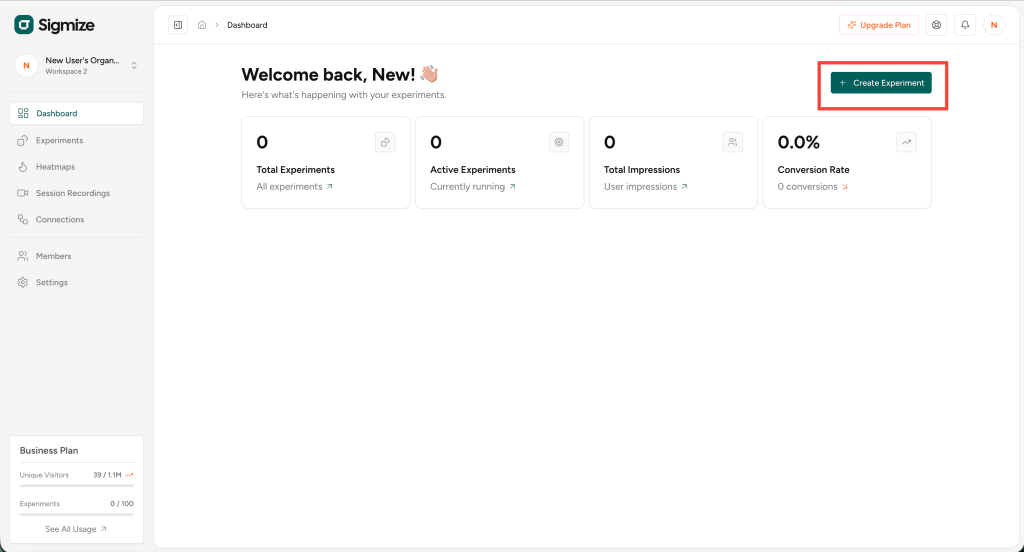
- Log in to your Sigmize account and click on “Create Experiment” located on the right side of the dashboard.
2. Choose Experiment Type
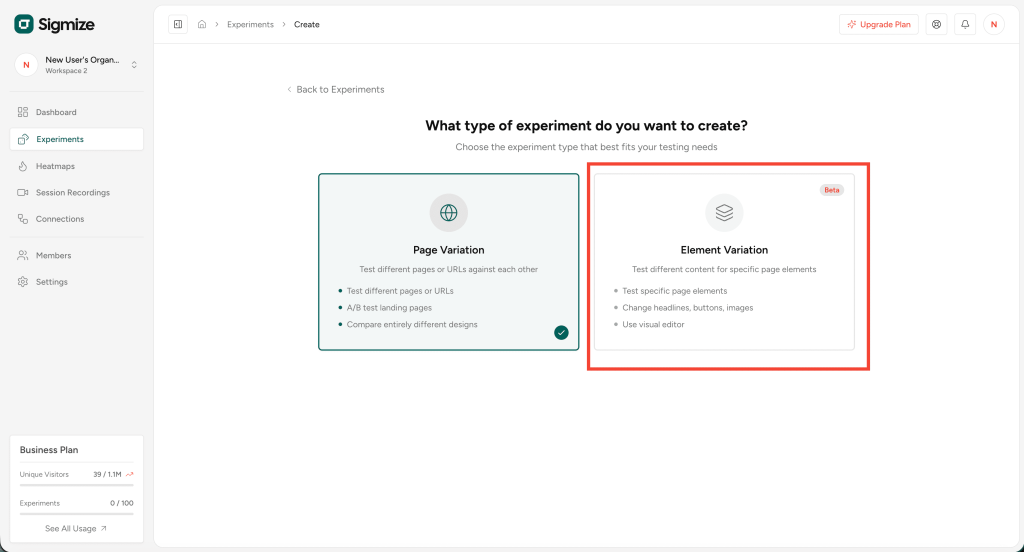
- You will now land on the page where you see two types of experiments: Page Variation and Element Variation.
- You need to choose Element Variation, as we are creating an element variation experiment.
3. Fill Out Basic Info
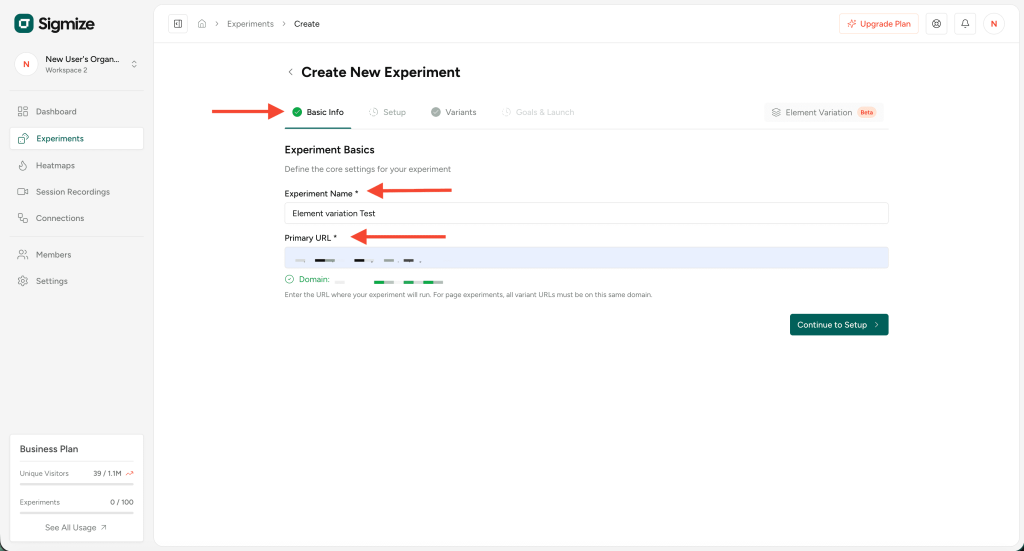
- In the Basic Info tab, provide the name for your experiment.
- The important step here is to provide the Primary URL, which is the URL on which you want to perform A/B testing or an element variation experiment.
- Make sure you have installed the Sigmize WordPress plugin on the site where this page exists.
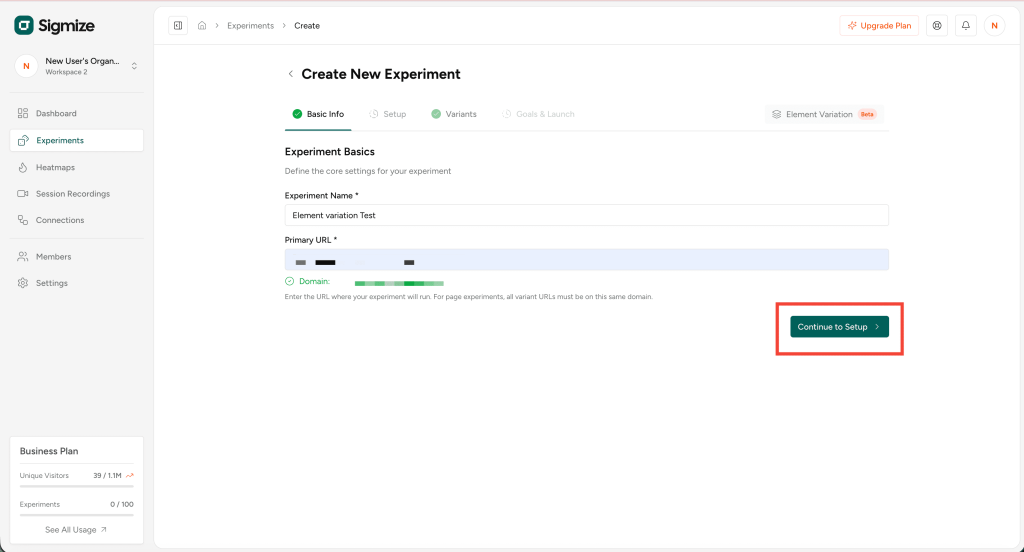
- Once done, click on the Continue to Setup button.
4. Complete the Setup
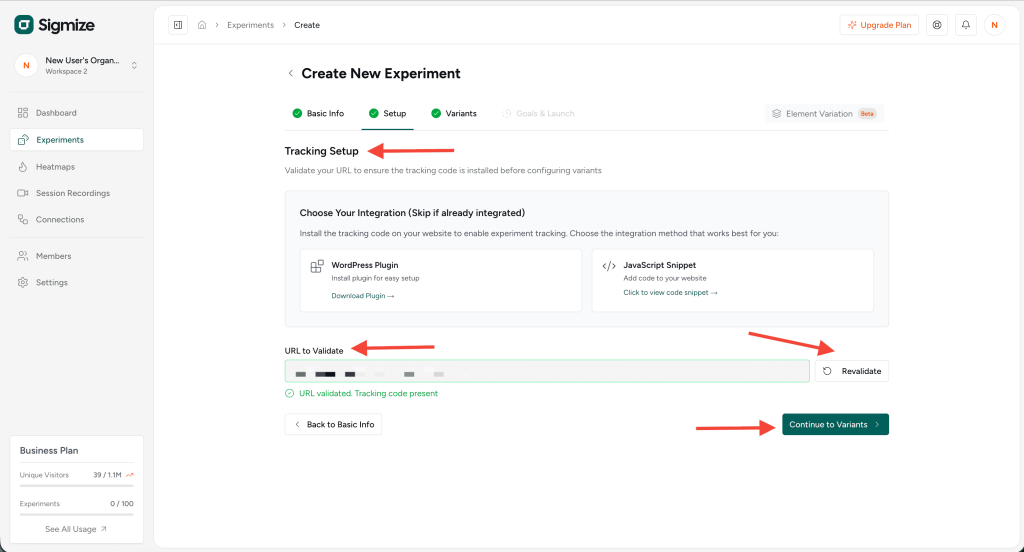
- On the Setup tab, you will first see Tracking Setup, which is required if you want to perform A/B testing on the same page.
- You must complete one of the following prerequisites:
- Install the Sigmize WordPress Plugin on the site where the page is created and connect it with your Sigmize account, OR
- Add a simple JavaScript snippet to your website’s
<head>section.
- This is required; otherwise, your URL will not be validated here.
- Once done, your URL will be automatically validated. You can revalidate it anytime.
- After that, click on the Continue to Variants button.
5. Configure Variants
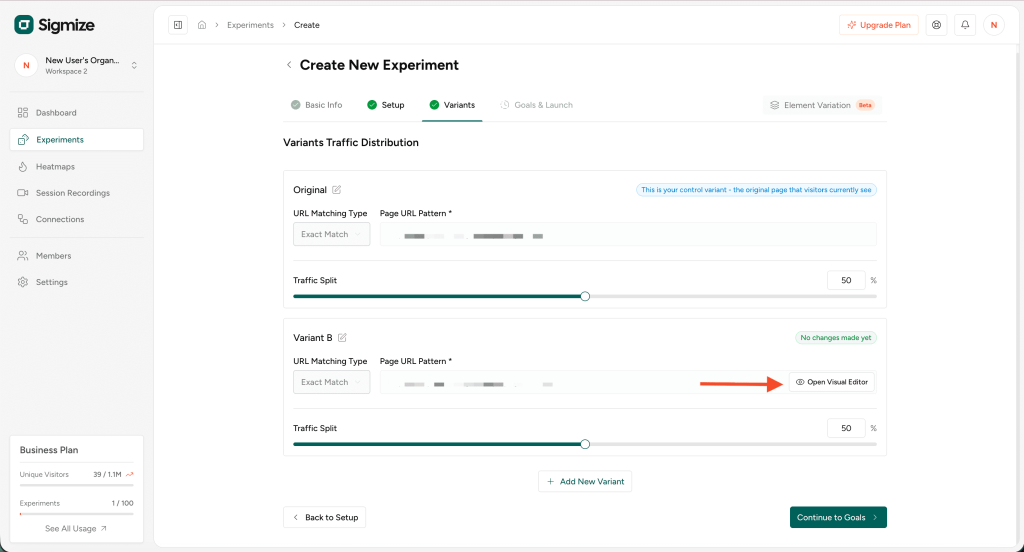
- On the Variants page, remember that you will not add different URLs as variations like you do in Page Variation experiments.
- Here, you will use the same URL for all variants.
So what is the difference?
- One variant will be the Original version (default state of the page).
- In the other variants, you can change:
- Fonts
- Styles
- Hide web elements
- Edit HTML
- Change hyperlinks
- And more using the Visual Editor
You are essentially performing A/B testing between the unchanged default version and the modified/enhanced version.
- To understand how to use the visual editor, click on the Open Visual Editor button inside Variant B.
6. Using the Visual Editor
After opening Variant B, your page will load, and after a few seconds the Visual Editor toolbar will appear.
You will first see the bottom menu bar with several options:
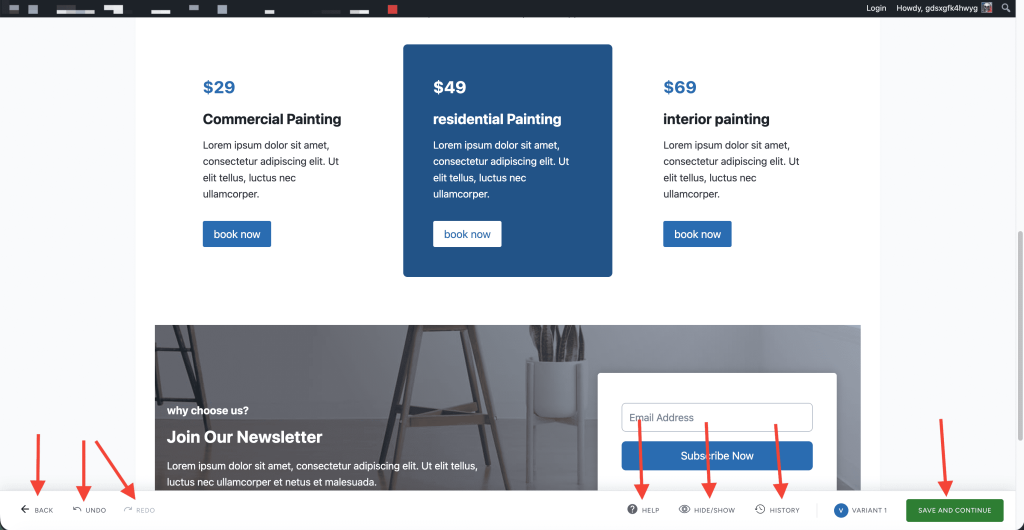
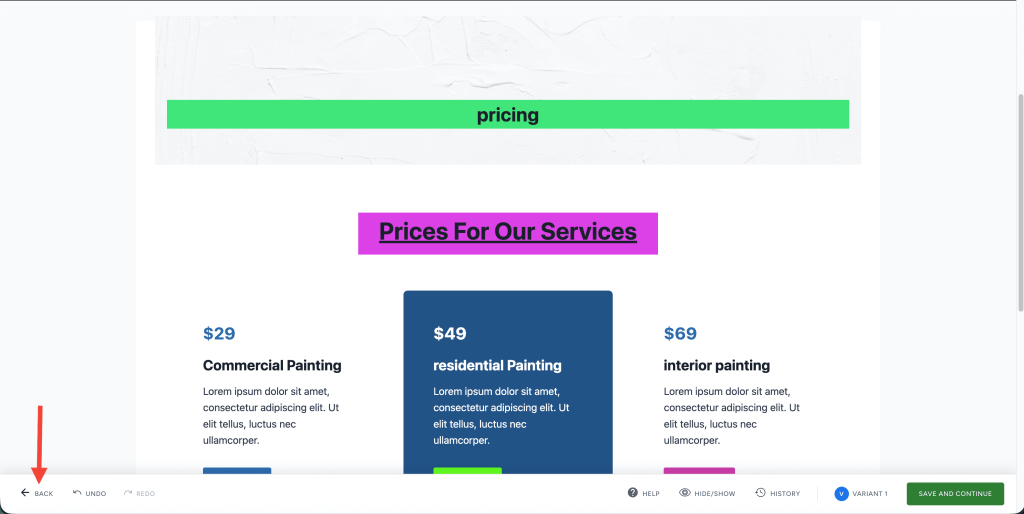
- Back – Used to go back to your experiment
- Undo / Redo – To undo or redo changes
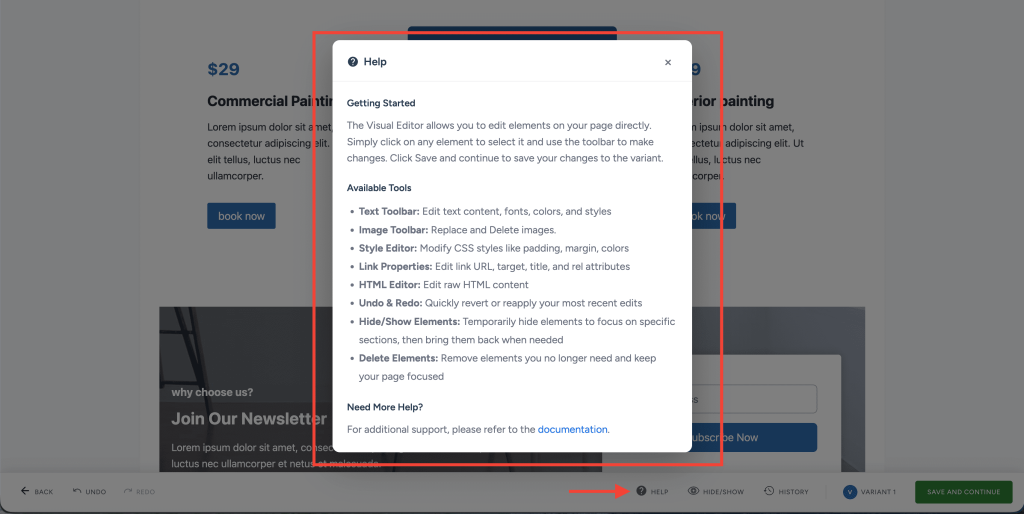
- Help – Opens a popup with information about all Visual Editor options
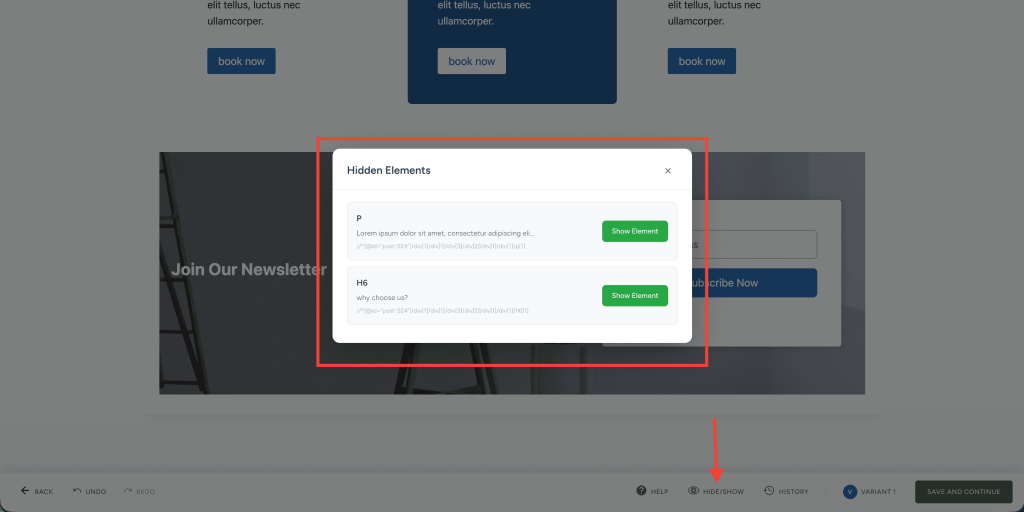
- Hide/Show – Lists all elements you have hidden; you can unhide them from here
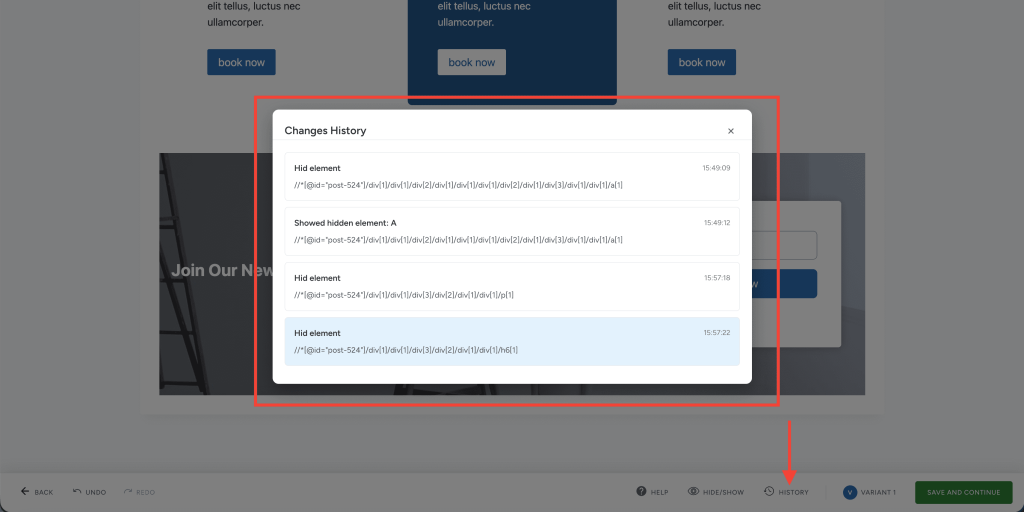
- History – Shows all logs of actions performed in the editor
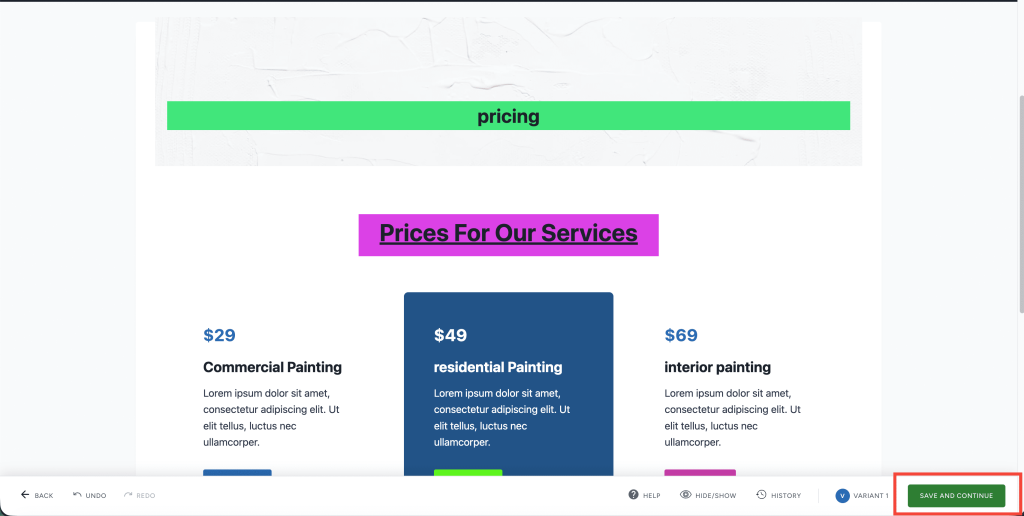
- Save and Continue – Saves all the work you have done
7. Edit Toolbar Overview
The Edit Toolbar appears when you click on any element. It includes several formatting options:
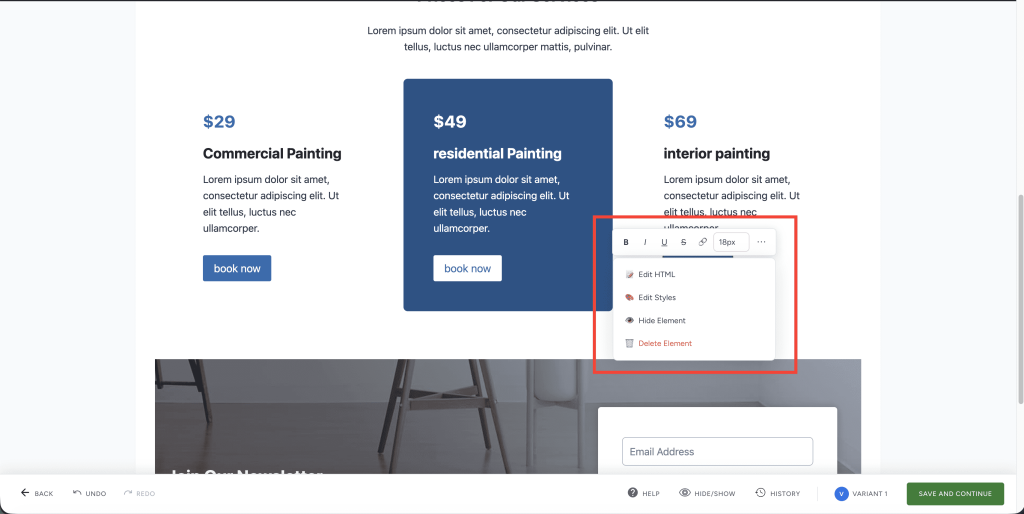
- Bold – Make text bold
- Italic – Italicize the text
- Underline – Add an underline to the text
- Strikethrough – Add a strikethrough effect
- Font Size – Increase or decrease text size
- Link Properties – Modify hyperlink settings for elements
Link Properties include:
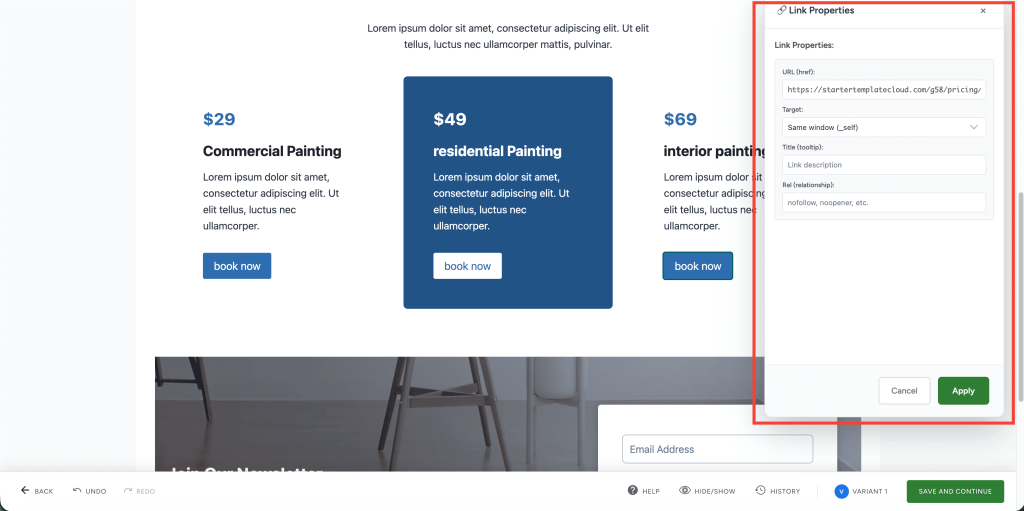
- URL field – Add or update the URL
- Target dropdown – Choose how the link opens (same window, new window, parent, top)
- Title (Tooltip) – Text shown on hover
- Rel (Relationship) – The “rel” attribute defines the relationship between the current page and the linked page. It controls how browsers, search engines, and security systems treat the link. Multiple values can be combined.
Common values:
nofollow – Prevents passing SEO authority to the linked page.
noopener – Prevents the linked page from accessing window.opener to protect against tabnabbing attacks.
noreferrer – Prevents sending the referring page URL for privacy/security.
sponsored – Marks paid/sponsored links for search engines.
ugc – Marks user-generated content links (comments, forums).
Other controls include:
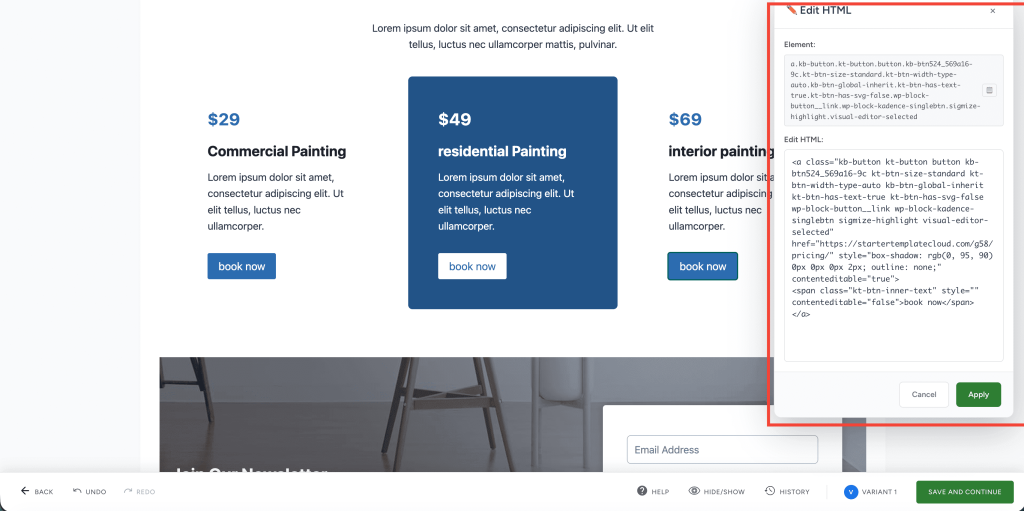
- Edit HTML – Edit the HTML code of the selected element
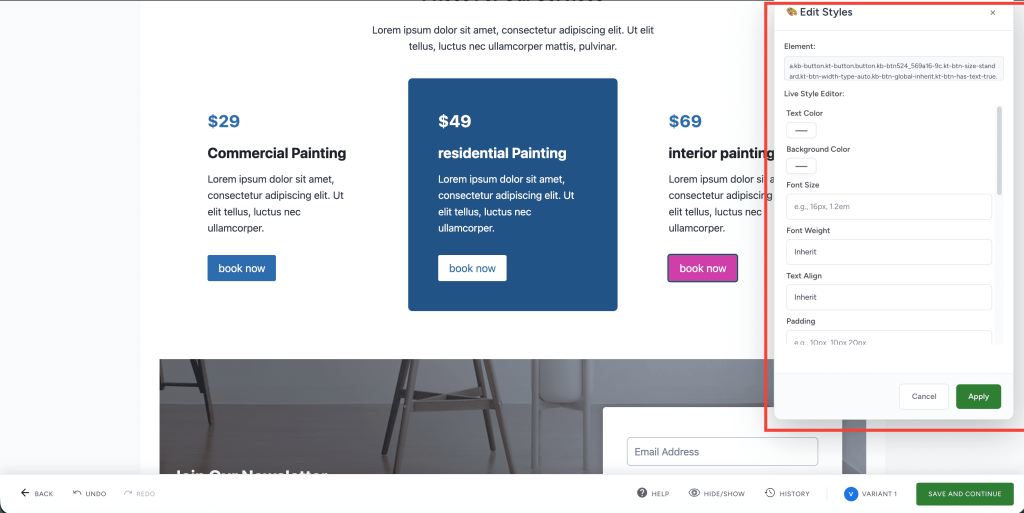
- Edit Styles – Modify text color, background color, font size, font weight, text alignment, padding, margin, border, border radius, width, height, display, position, and opacity
- Hide Element – Hide the selected element
- Delete Element – Delete the selected element from the page
Once you finish editing, click SAVE AND CONTINUE.
8. Save and Return
- After saving, click the Back button to return to the experiment’s Variants tab.
- Close the popup.
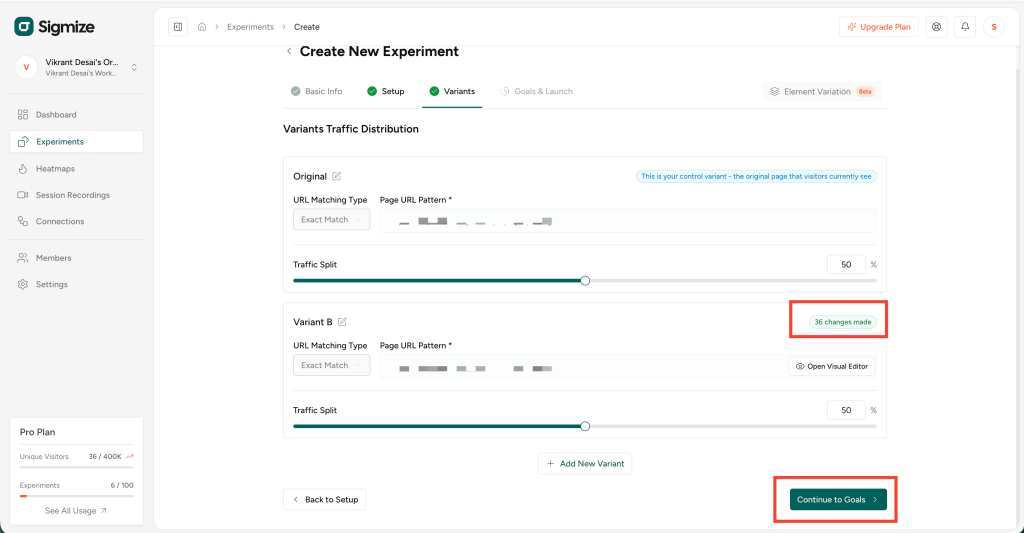
- You will now see something like “36 changes made” under Variant B, which shows the visual changes you made.
Click on Continue to Goals.
9. Set Up Goals
- On the Goals screen, select the goals you want to track for this experiment.
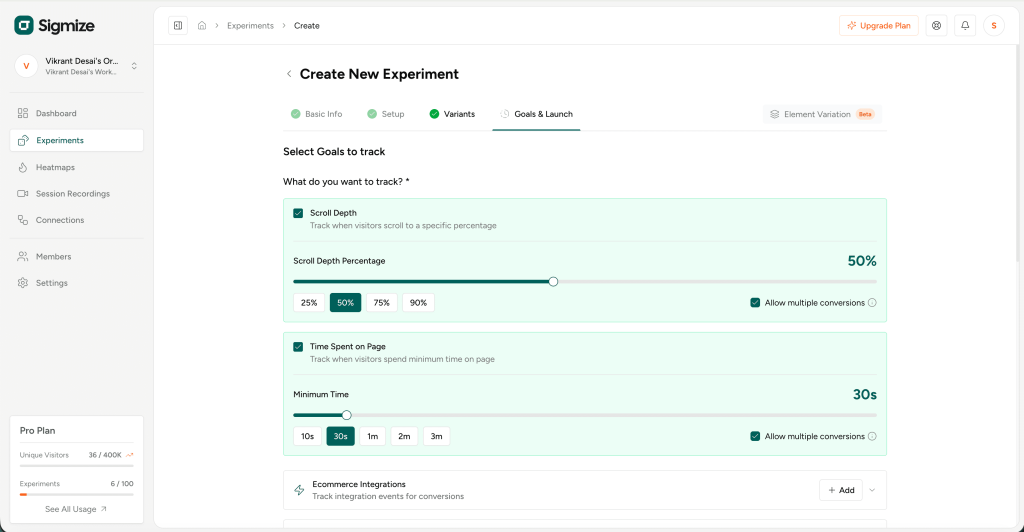
- This works exactly the same as in Page Variation experiments.
- If you are new to goals, refer to the document: “Let’s Setup Goals in Sigmize”.
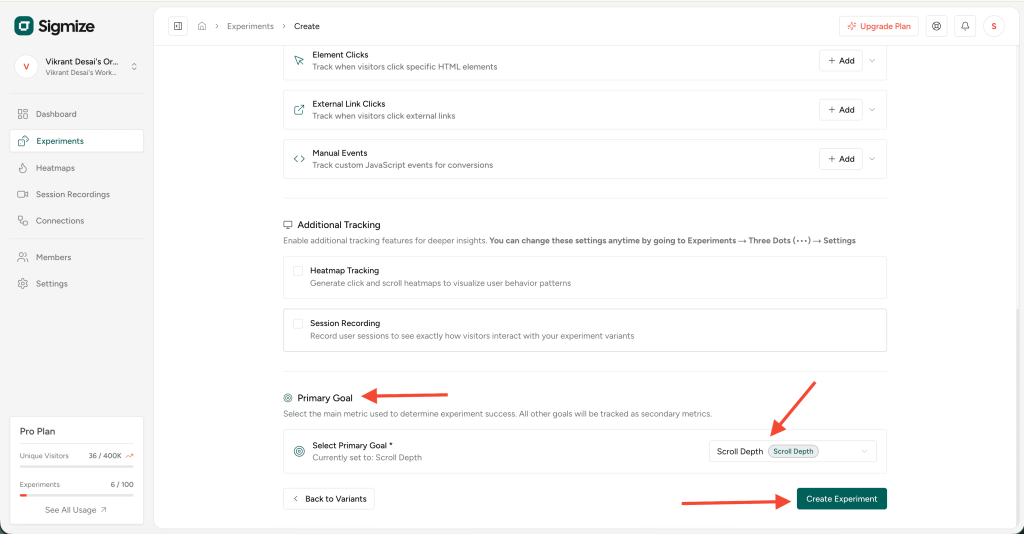
- Finally, select a Primary Goal for your experiment.
This is the main metric used to determine the experiment’s success.
All other goals will be tracked as secondary metrics. - Once done, click “Create Experiment.”
10. Activate the Experiment
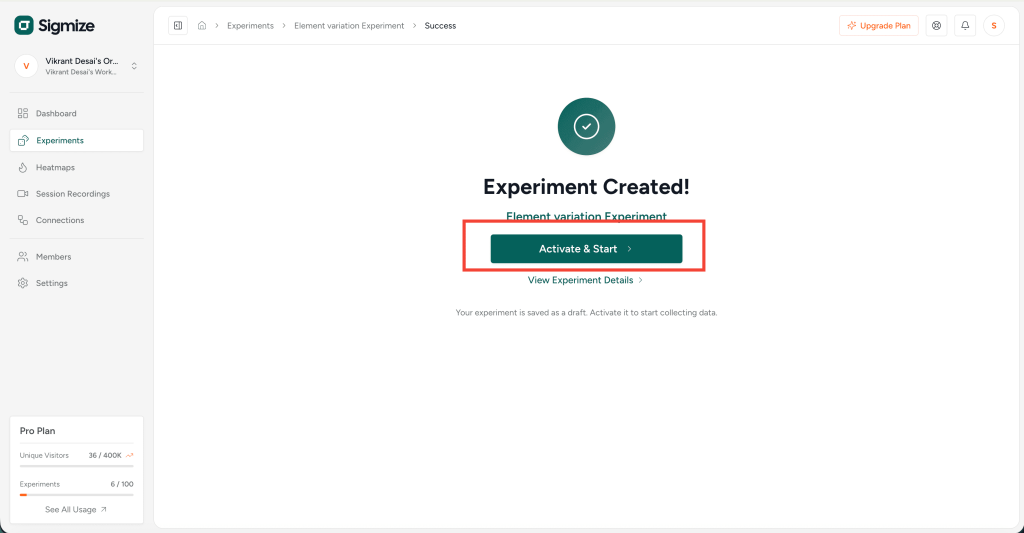
- Click on the Activate & Start button to activate your experiment.
🎉 That’s it!
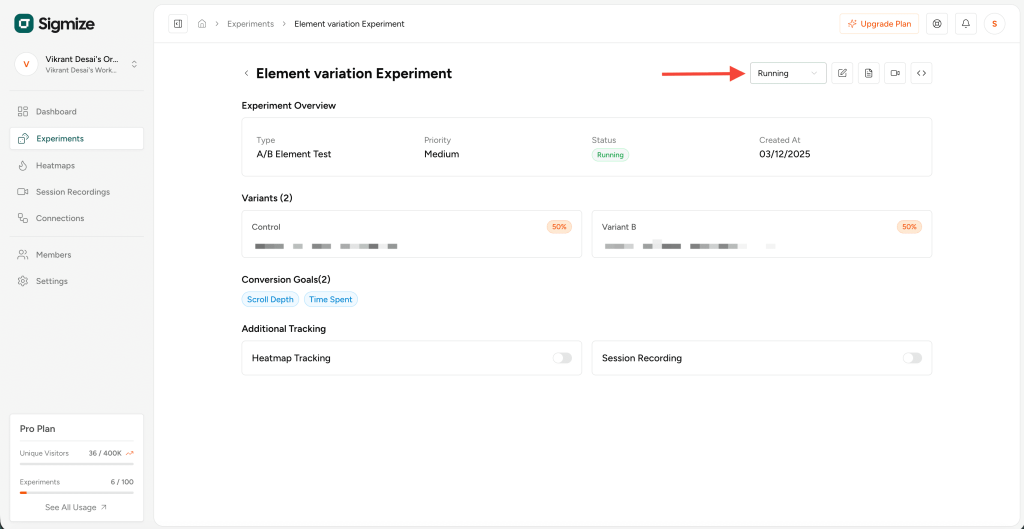
Your Element Variation Experiment is now running.
You can now compare the Original version and the modified variant and see which one performs better through the reports.
We don't respond to the article feedback, we use it to improve our support content.